
CSS Anchor Positioning: An In-Depth Visual Guide
Connecting elements often means calculating positions in JavaScript — and recalculating them whenever the layout changes. CSS Anchor Positioning lets the browser handle that work.
In this in-depth visual guide, we’ll learn everything we need to build flexible connections between moving elements — from positioning a single element to linking anchors, routes, and a ship that stays attached.
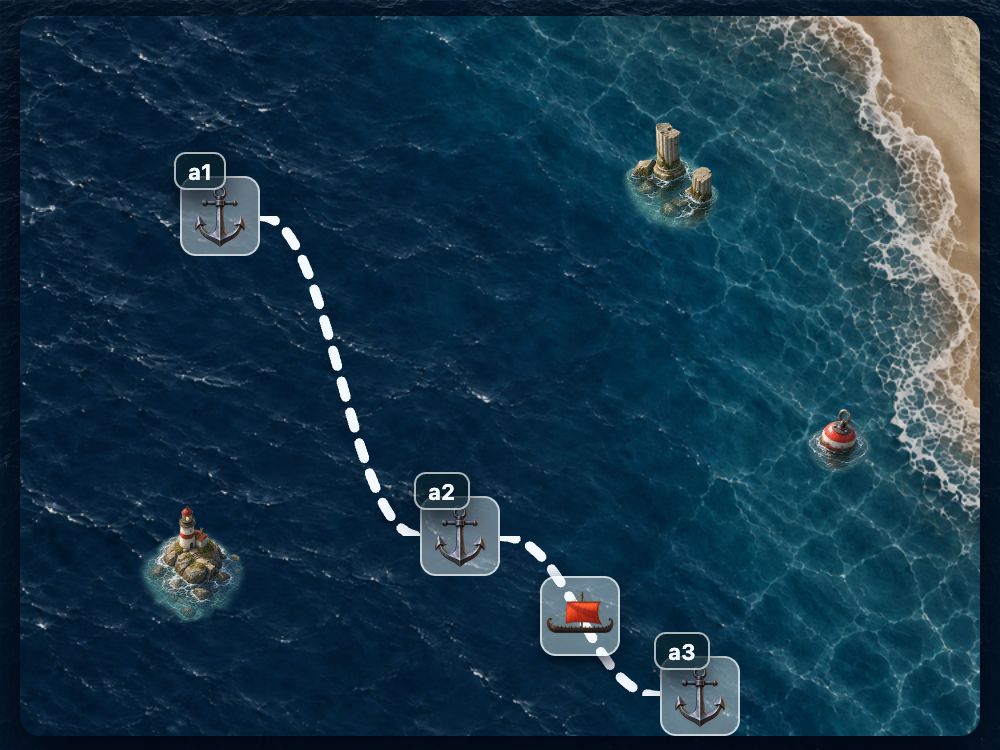
CSS Anchor Positioning lets us place an absolutely positioned element relative to other elements on the page: its anchors. It arrived in Chrome 125 in May 2024.
With ordinary position: absolute, the top, right, bottom, and left offsets are measured from the containing block, which is established through the element's ancestors. Anchor Positioning lets us attach the element to something outside that ancestor chain. That's exactly how our examples work: .anchor and .target have different parents.
Here's the markup we'll use:
<main class="stage">
  <div class="work-field">
    <div class="anchor"></div>
  </div>
  <div class="parts-field">
    <div class="target"></div>
  </div>
</main>
We'll connect .anchor and .target. Keep those separate parent elements in mind: the browser will maintain the connection across them. In the code examples below, highlighted lines show what we add or change at each step.
1. Positioning with position-area
Here's our starting point. The two elements are still sitting in their own containers, just where we'd expect them to be.
.anchor {
  /* No name assigned yet. */
}

.target {
  position: absolute;
}
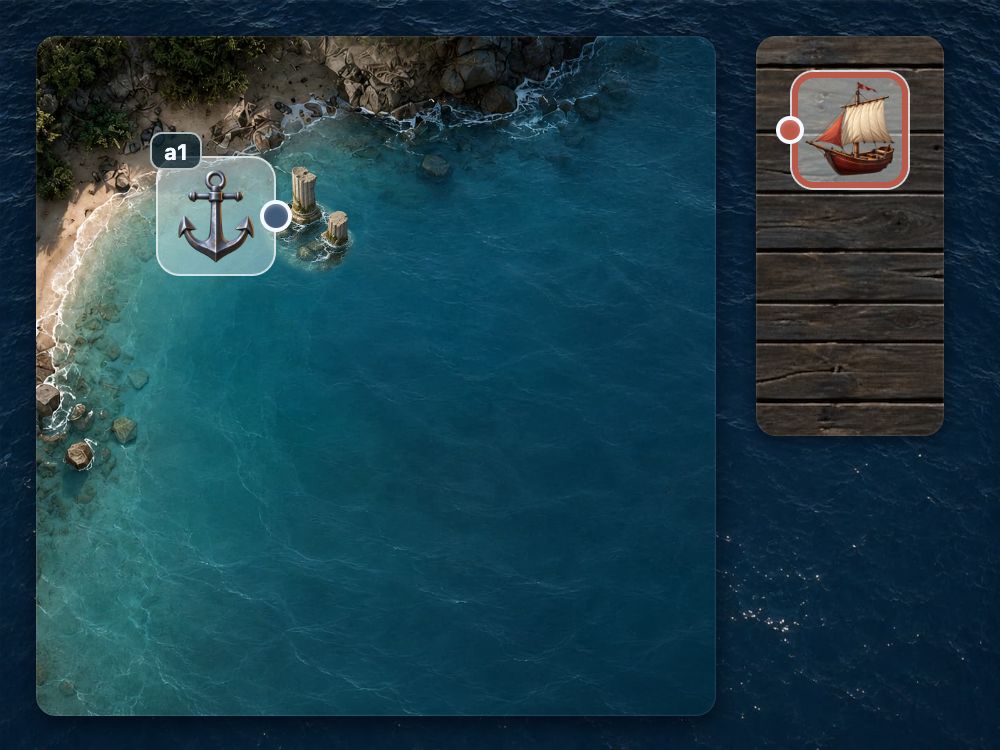
To connect them with position-area, we give the anchor a name using anchor-name. On the element we want to move, we select that name with position-anchor and choose a placement area with position-area.
.anchor {
  anchor-name: --a1;
}

.target {
  position: absolute;
  position-anchor: --a1;
  position-area: right;
}
The element moves over to the anchor and settles on its right.
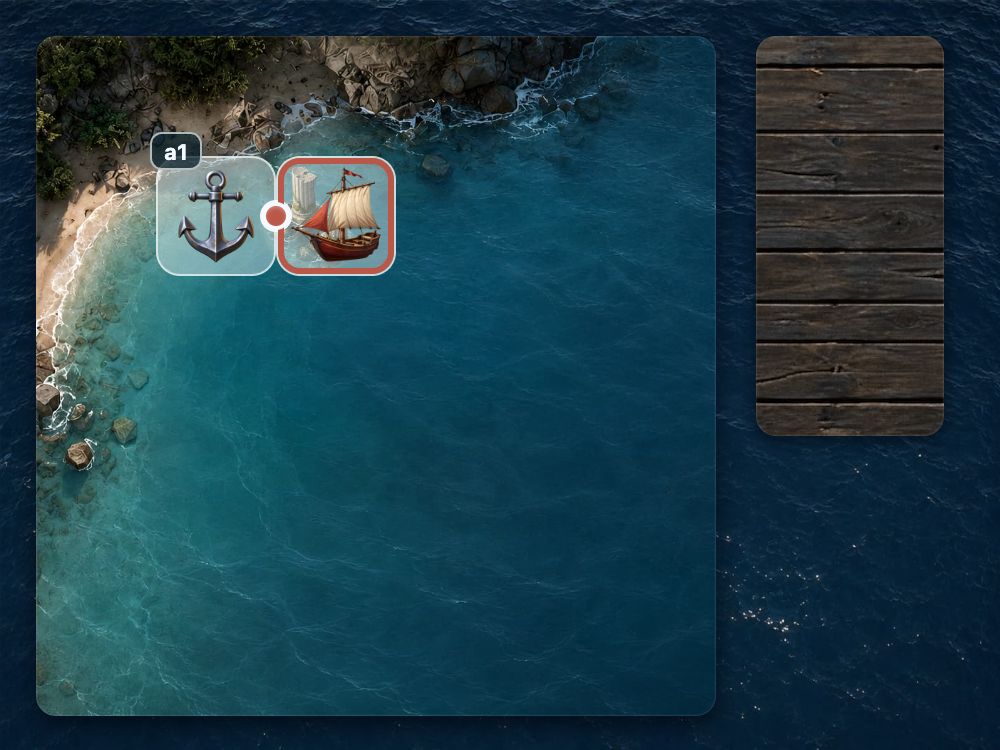
Now let's rearrange the parent containers. The connection holds: the element stays to the right of its anchor.
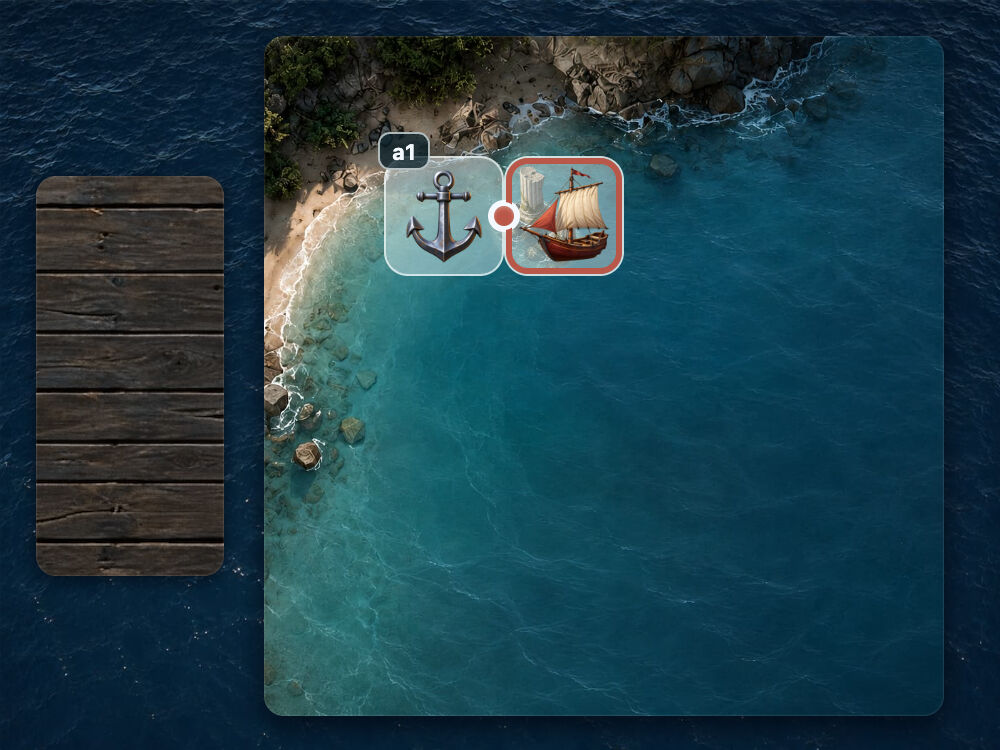
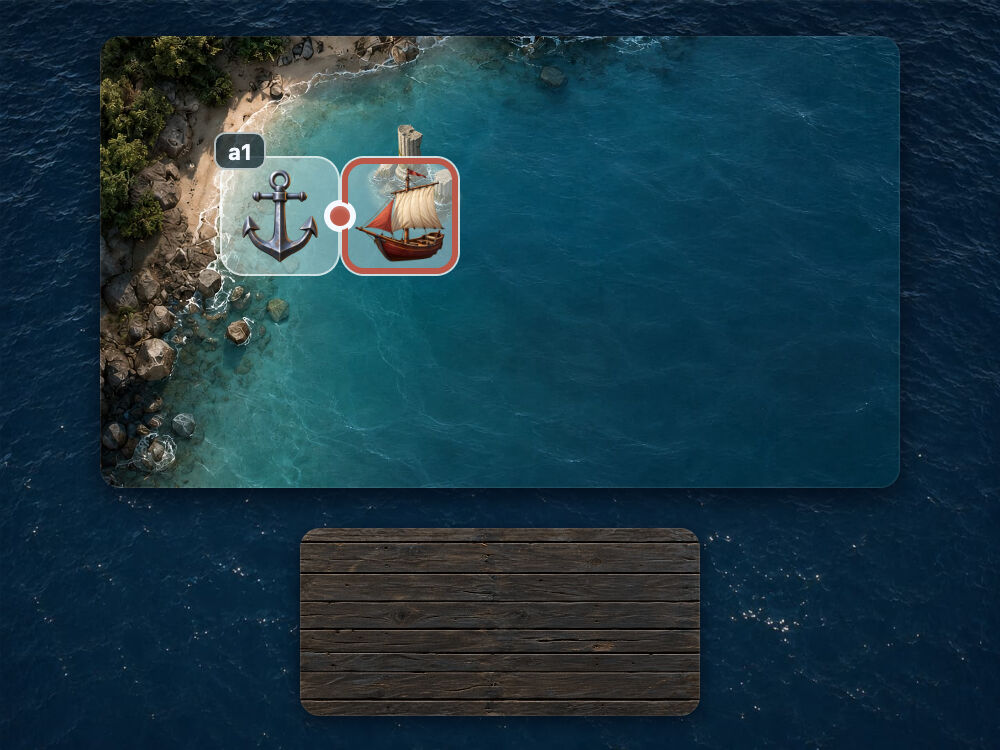
The browser recalculates the position for us. It works out the anchor's new bounds, then places the element in the area on its right.
position-anchor: choosing an anchor
Let's experiment with the anchor itself. This scene has three, named --a1, --a2, and --a3. For now, .target has position-anchor: none, so it isn't attached to any of them and stays in its own container.
.anchor--one { anchor-name: --a1; }
.anchor--two { anchor-name: --a2; }
.anchor--three { anchor-name: --a3; }

.target {
  position: absolute;
  position-anchor: none;
  position-area: top;
}
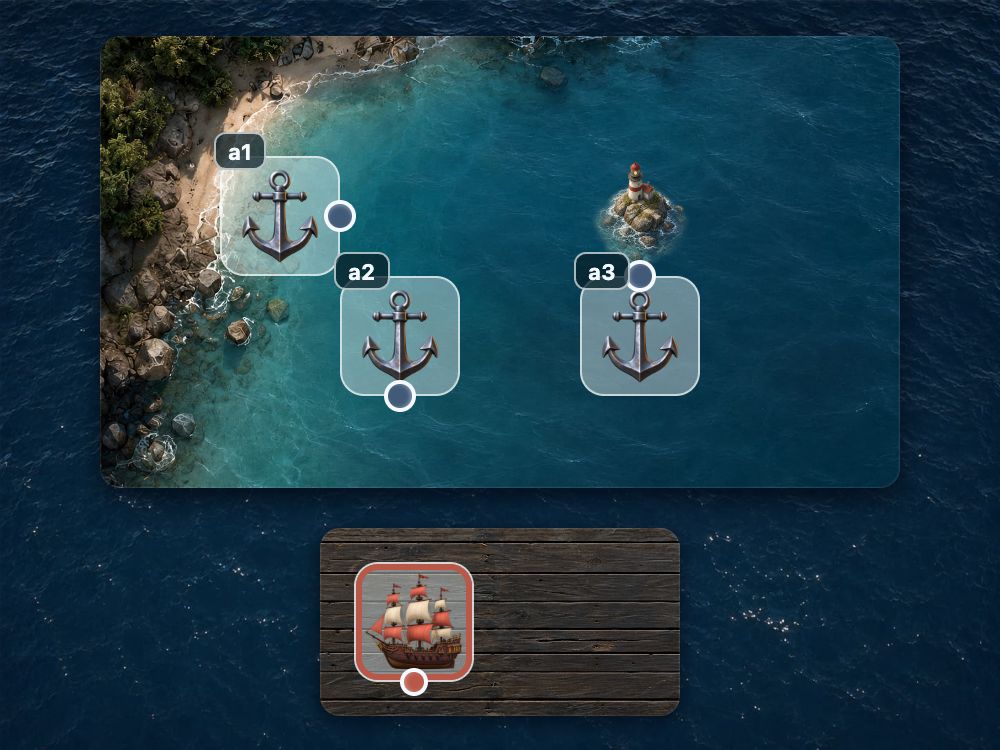
Set position-anchor to --a1, then --a2, then --a3. The element moves above whichever anchor we choose; position-area: top keeps its placement the same.
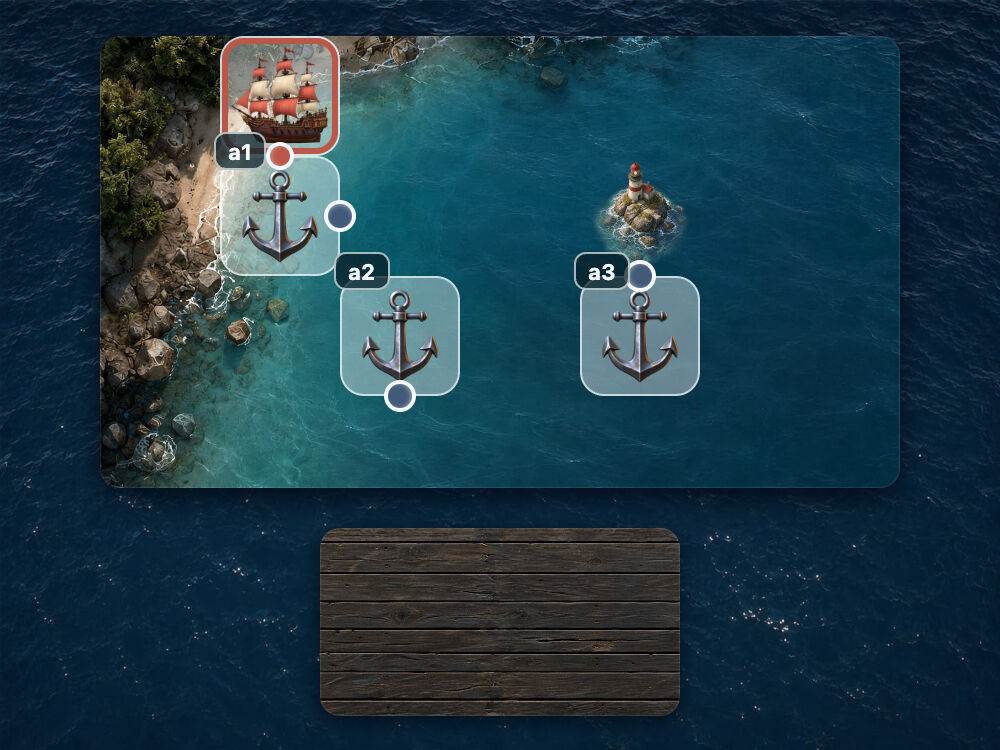
position-anchor: --a1;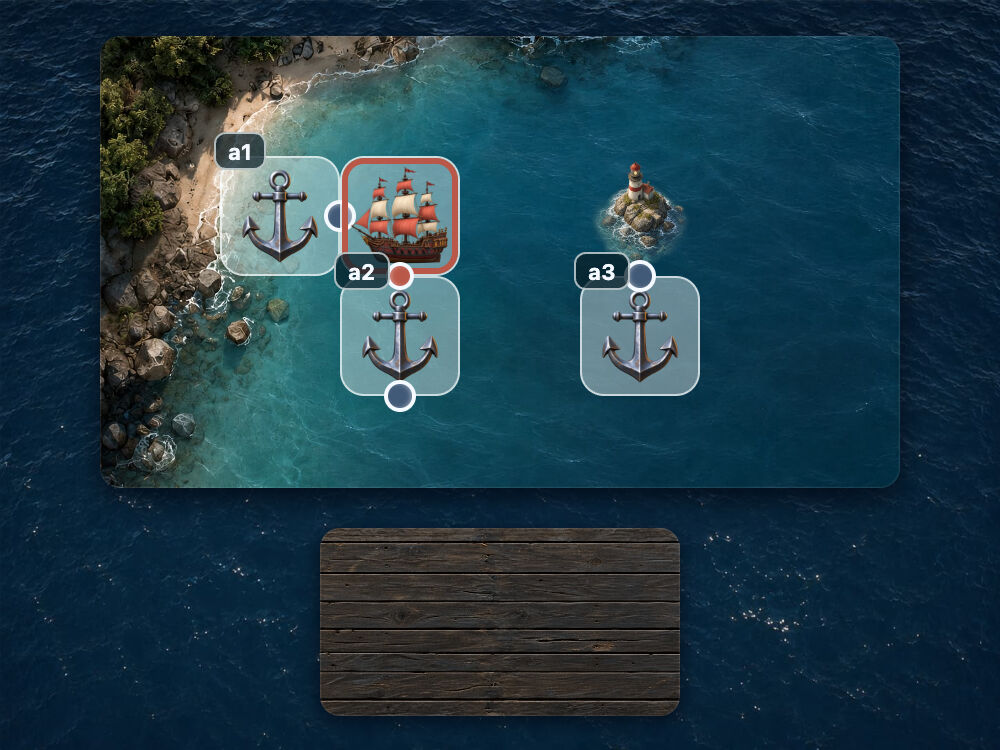
position-anchor: --a2;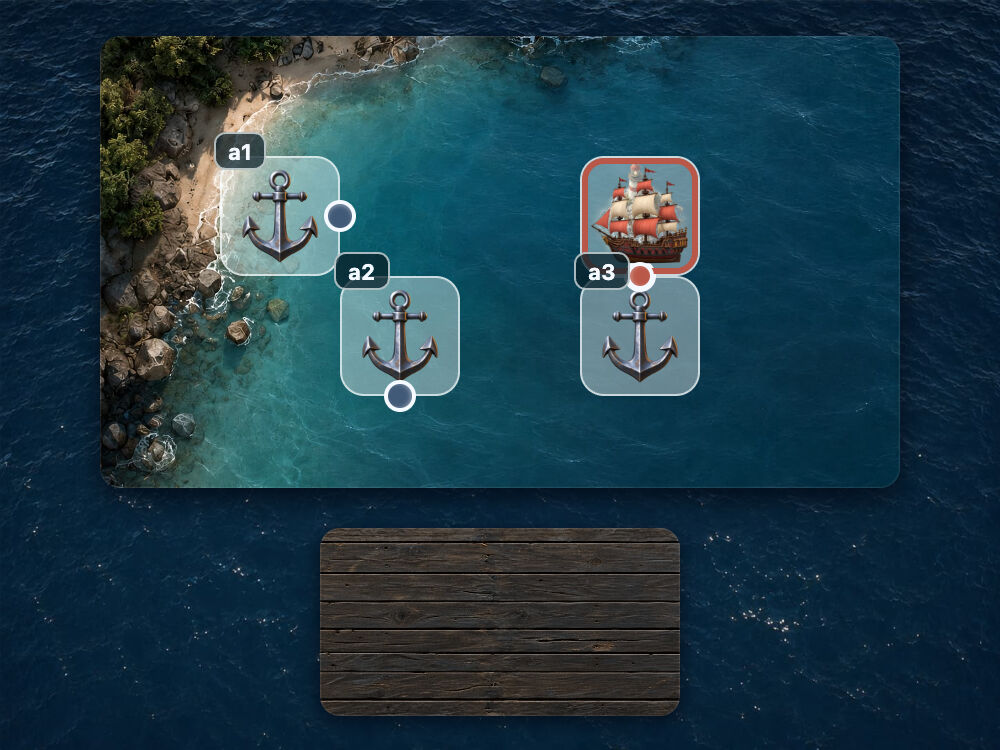
position-anchor: --a3;position-area: choosing where to place the element
This time, we'll keep one anchor and change where the element sits around it. We start with .target attached to --a1, above the anchor, using position-area: top.
.anchor {
  anchor-name: --a1;
}

.target {
  position: absolute;
  position-anchor: --a1;
  position-area: top;
}
Try top, right, bottom, and left in turn. The element moves above, to the right, below, and to the left of the anchor.
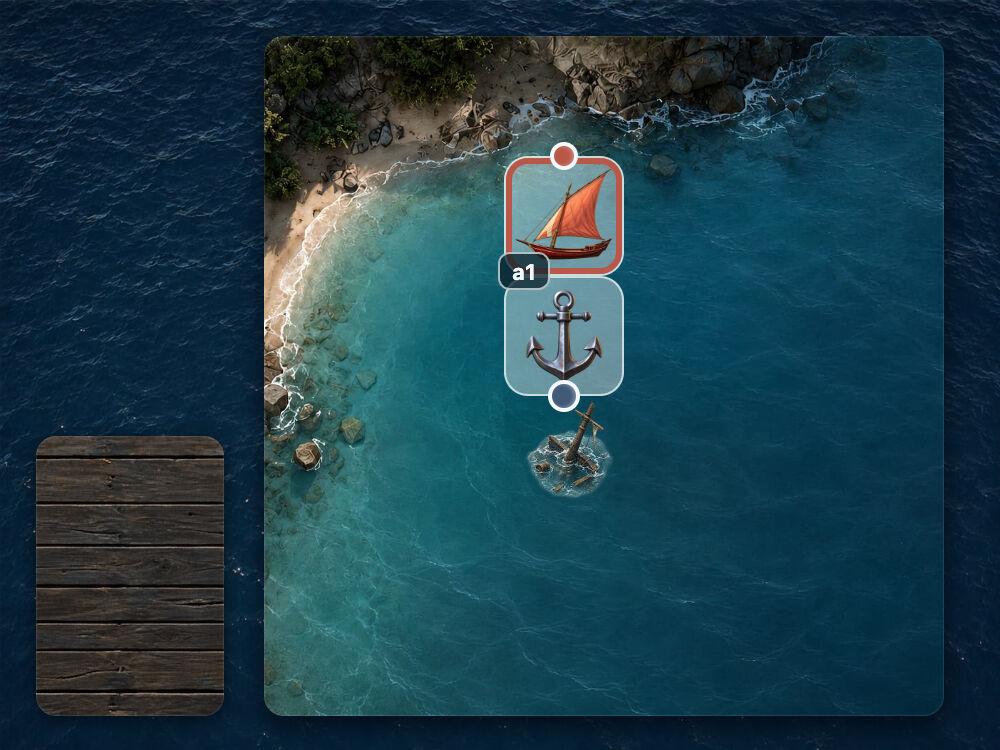
position-area: top;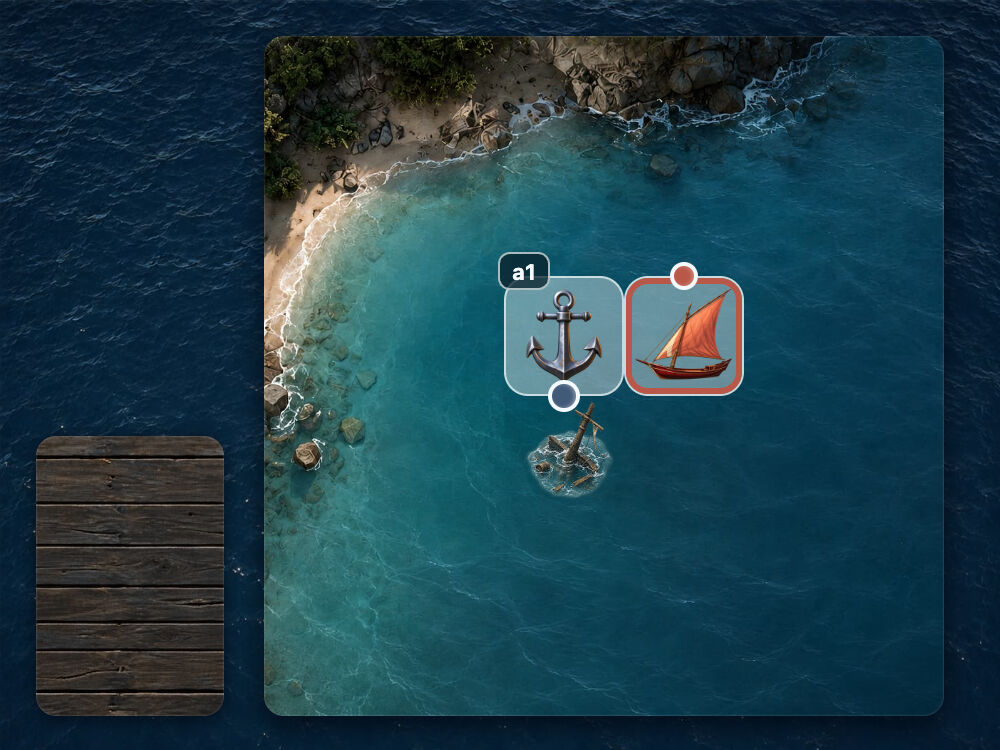
position-area: right;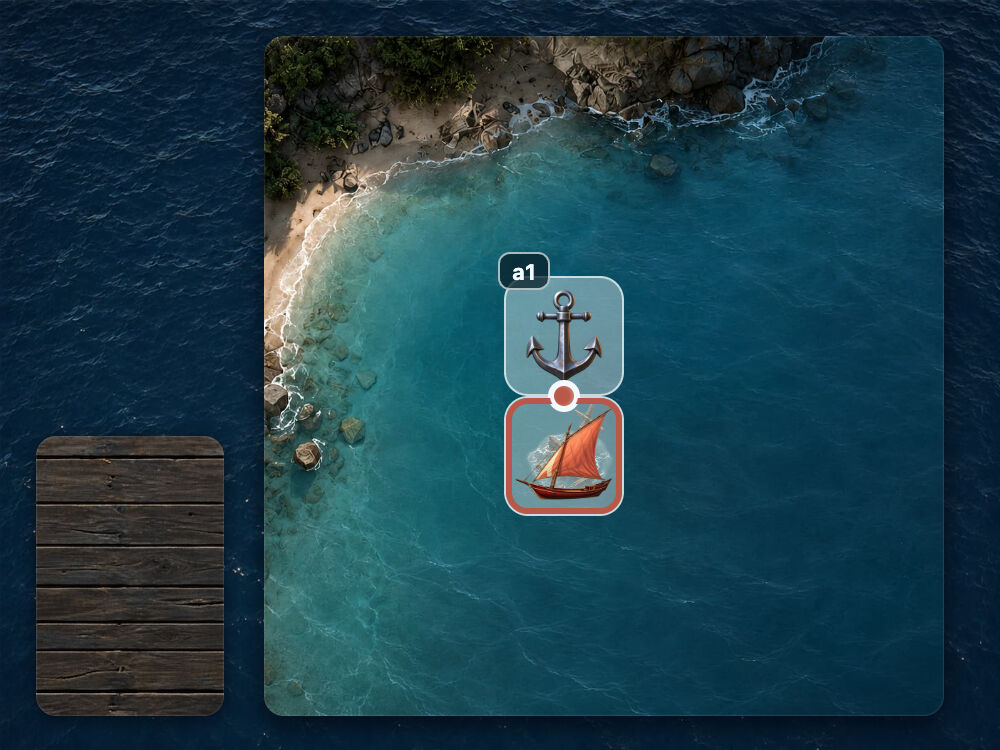
position-area: bottom;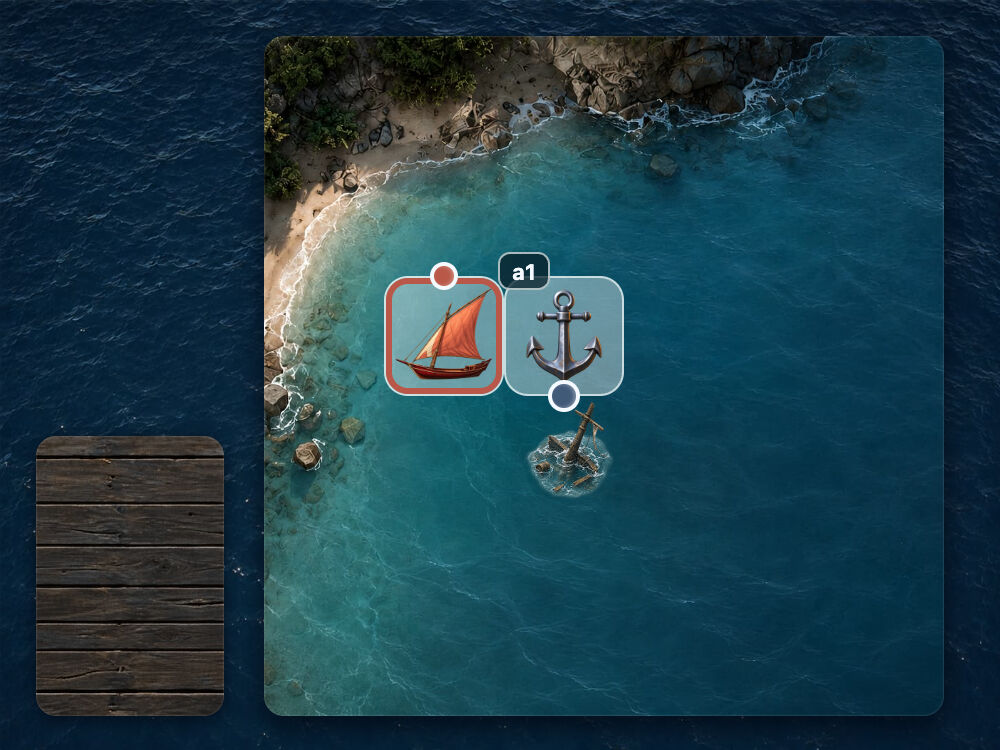
position-area: left;The edges of the anchor and the containing block form a 3×3 grid, with the anchor in the middle. top selects the whole upper strip of that grid; right selects the whole right-hand strip. bottom and left work the same way.
Within the selected strip, the default alignment rules place the element against the anchor on one axis and center it on the anchor on the other. That's why it ends up at the midpoint of each side in the pictures.
2. Positioning with anchor()
position-area chooses a placement region. With anchor(), we can control individual edges. The property — top, right, bottom, or left — selects an edge of the positioned element, and the argument inside the function selects a side of the anchor. For example, left: anchor(right) aligns the element's left edge with the anchor's right edge.
Let's start with .anchor and .target in their separate containers again. We've selected an anchor with position-anchor, but haven't connected any edges yet, so .target stays put.
.anchor {
  anchor-name: --a1;
}

.target {
  position: absolute;
  position-anchor: --a1;
  left: auto;
  top: auto;
}
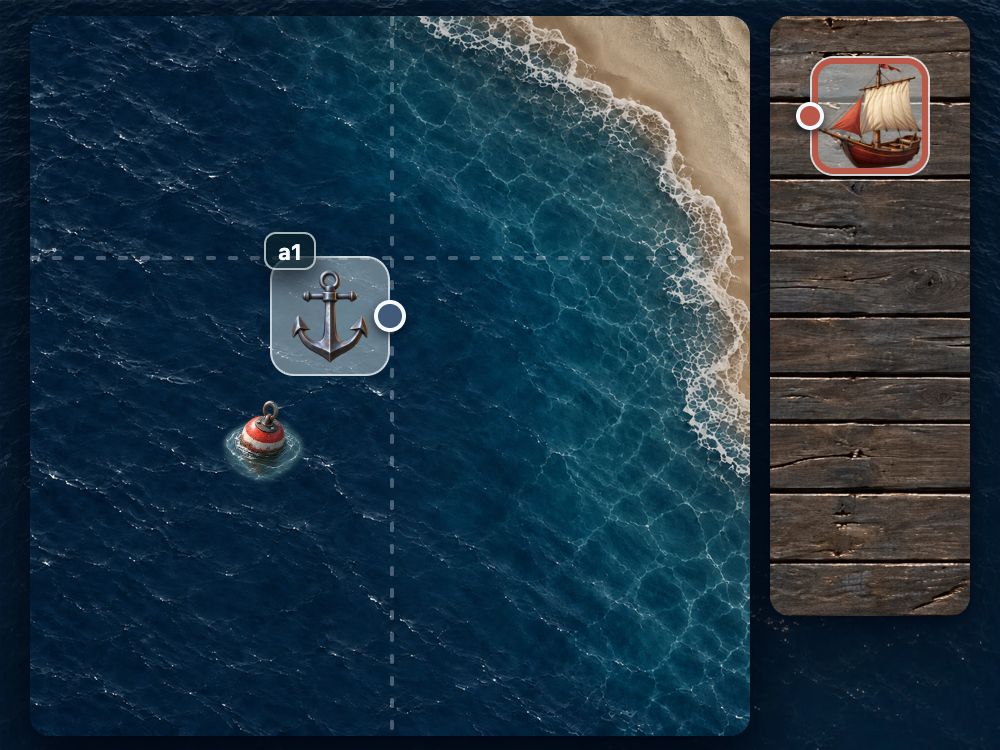
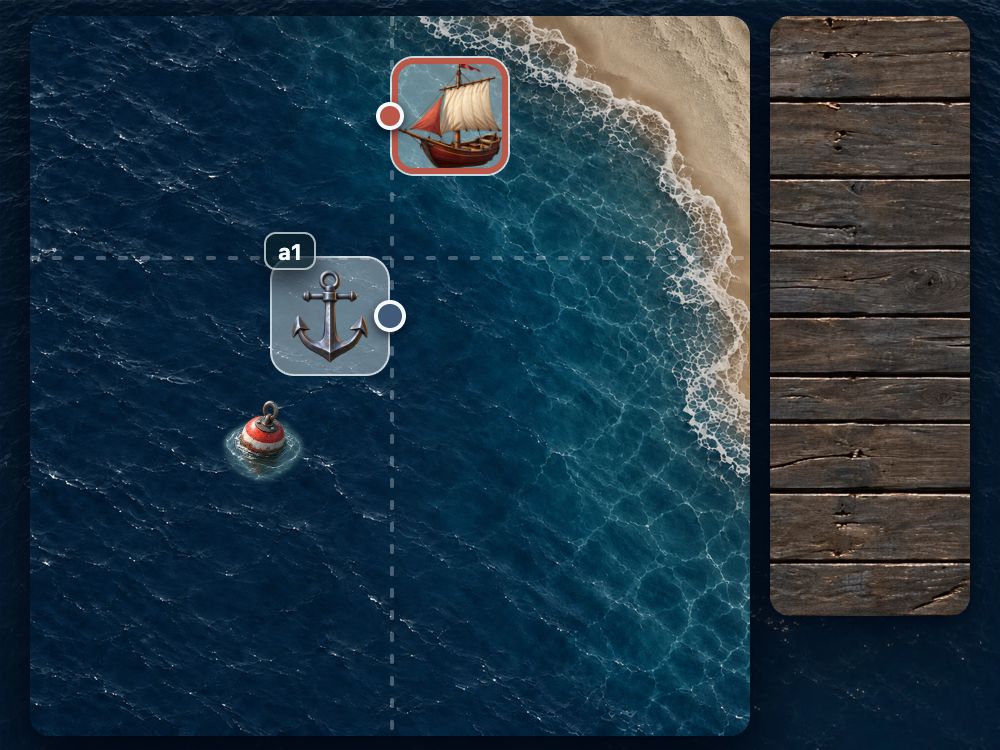
First, attach the element's left edge to the anchor's right edge. Set left: anchor(right) and leave top: auto.
.anchor {
  anchor-name: --a1;
}

.target {
  position: absolute;
  position-anchor: --a1;
  left: anchor(right);
  top: auto;
}
The element moves horizontally. Its left edge now sits on the dotted line extending from the anchor's right edge. Its vertical position hasn't changed.
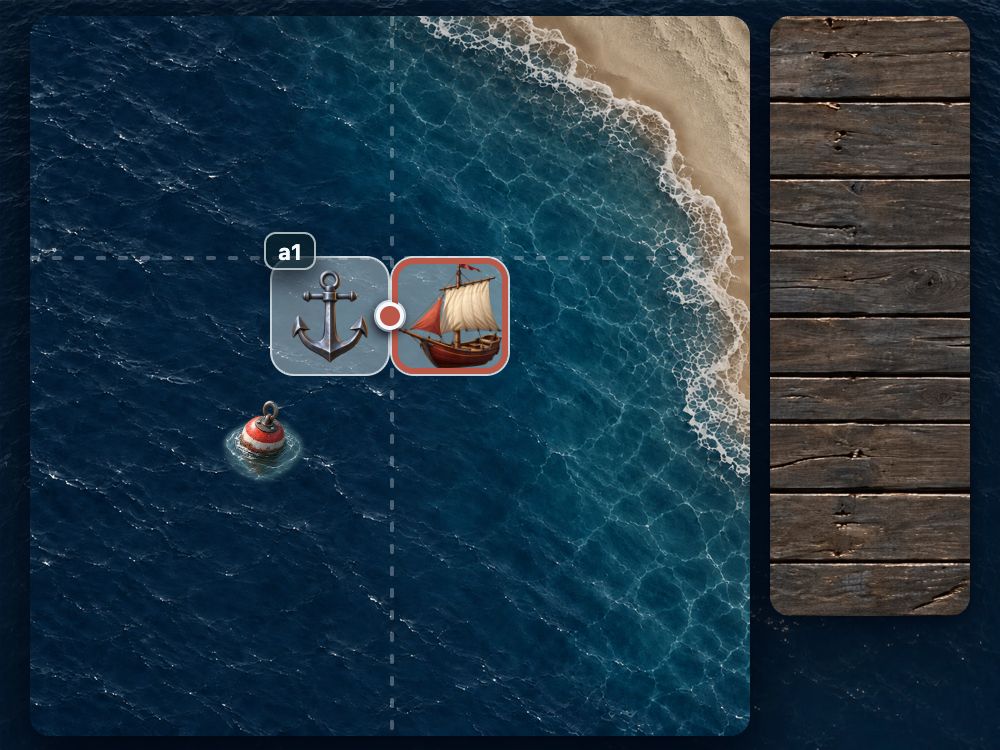
Now add top: anchor(top) to align their top edges. Keep the left declaration.
.anchor {
  anchor-name: --a1;
}

.target {
  position: absolute;
  position-anchor: --a1;
  left: anchor(right);
  top: anchor(top);
}
The element moves vertically and ends up on the anchor's right, with their top edges aligned. Its top-left corner sits at the intersection of the dotted lines.
Let's change the side passed to anchor(). In the first two examples below, we change the argument used by left, moving the element horizontally. In the next two, we change the argument used by top, moving it vertically. Each time, we keep the other coordinate unchanged.
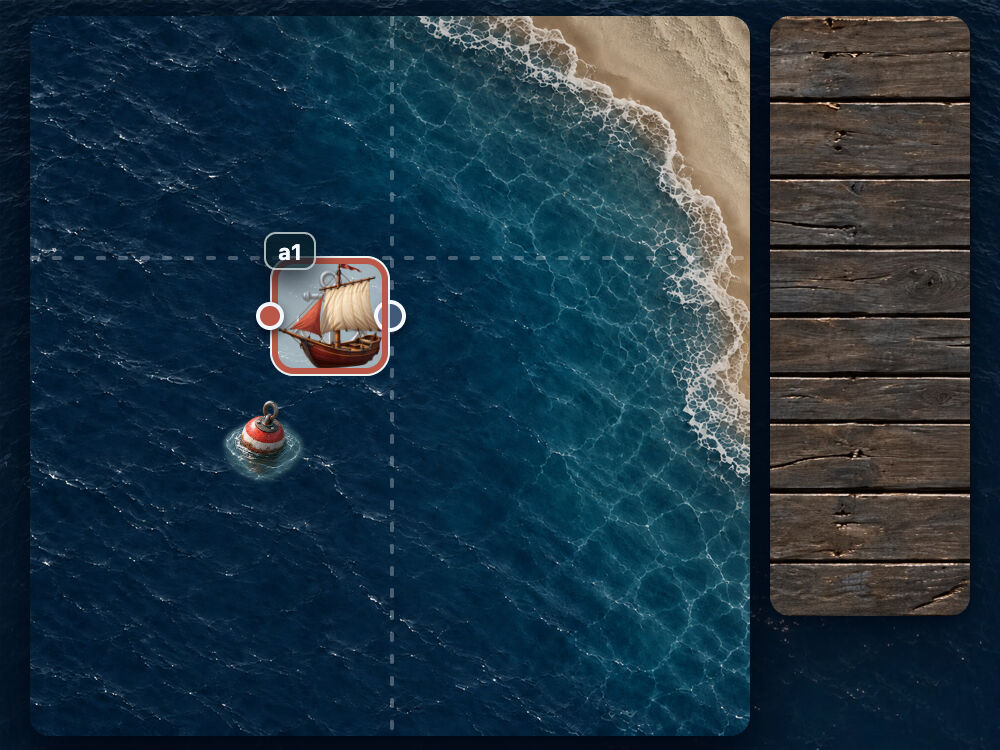
left: anchor(left);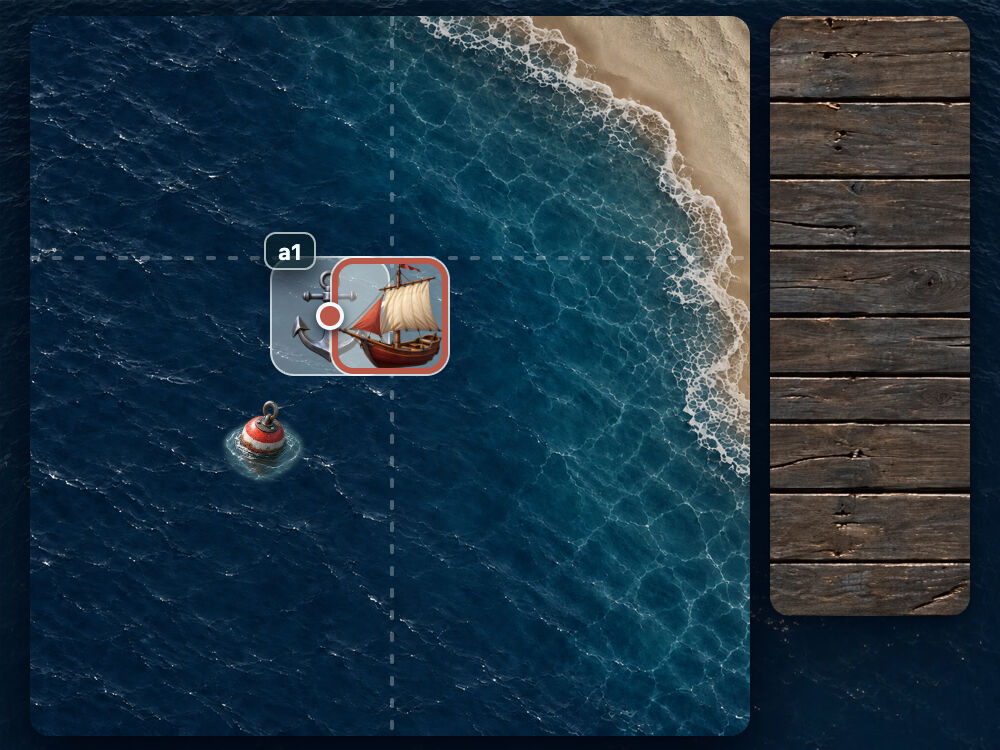
left: anchor(center);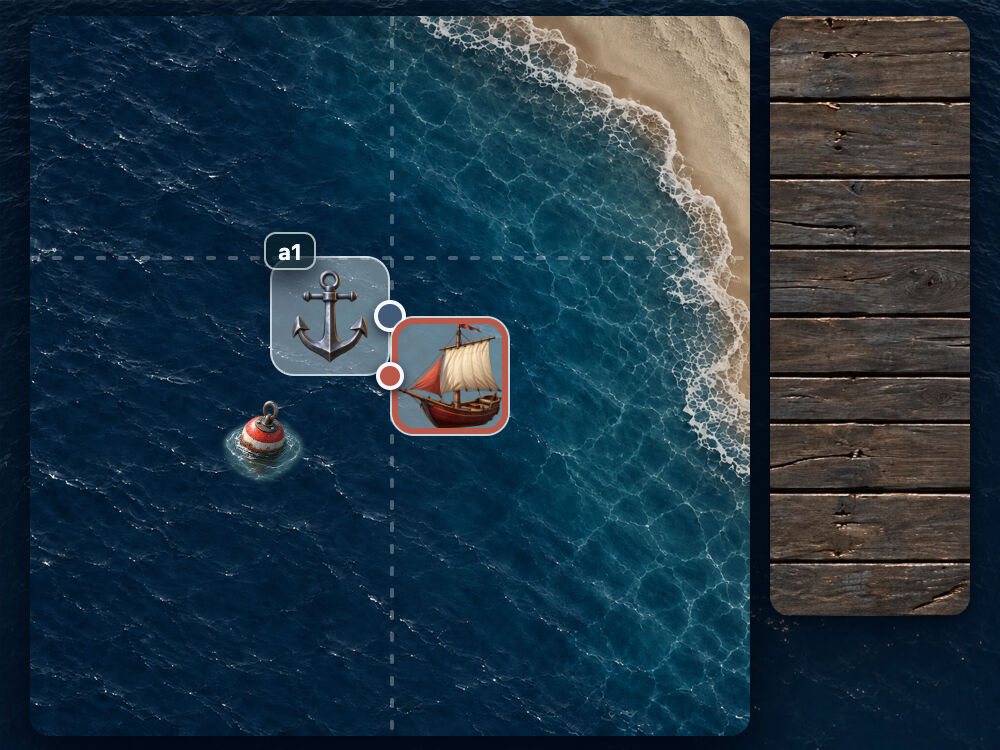
top: anchor(center);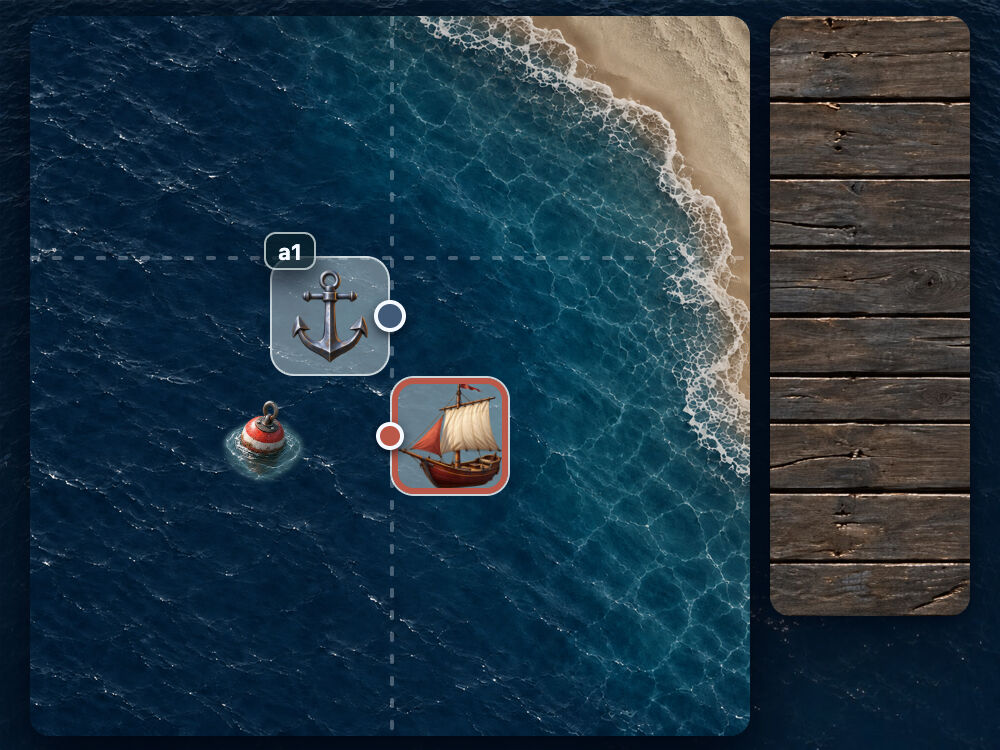
top: anchor(bottom);Watch what center does here. With left: anchor(center), it's the element's left edge that passes through the anchor's center. With top: anchor(center), it's the top edge. The element itself isn't centered. The dotted guides still mark the anchor's right and top edges, making the shift easier to compare.
right and bottom: attaching the other edges
Let's try the element's right and bottom edges. We start with the anchor selected, but both offsets set to auto, so the element is still in its own container.
.anchor {
  anchor-name: --a1;
}

.target {
  position: absolute;
  position-anchor: --a1;
  right: auto;
  bottom: auto;
}
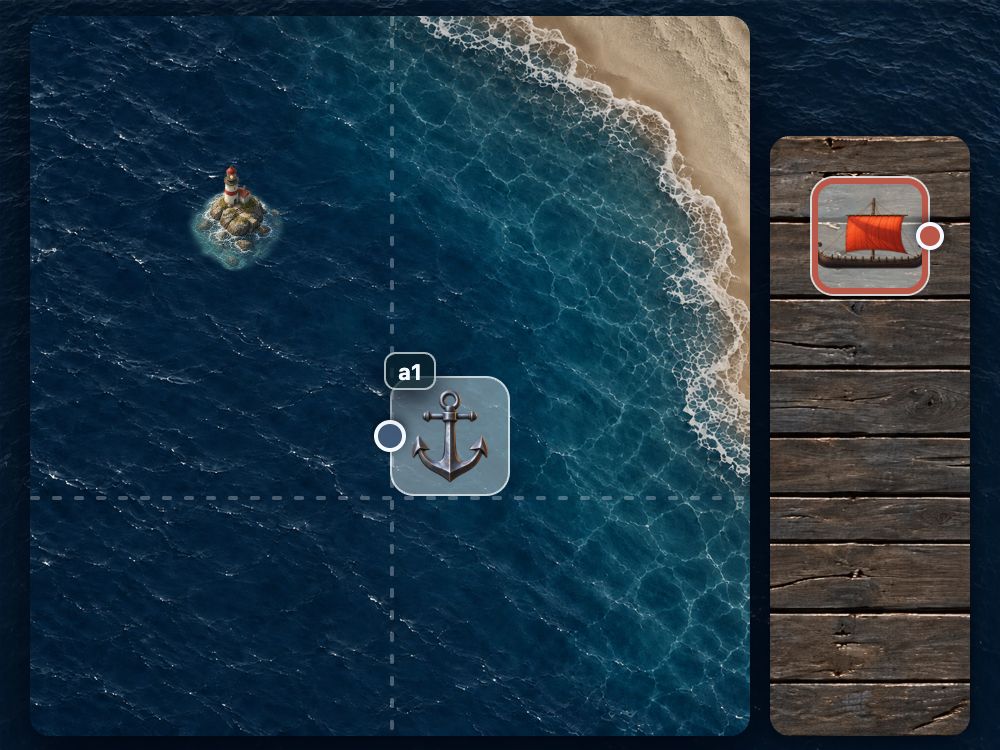
Set right: anchor(left) to align the element's right edge with the anchor's left edge, and bottom: anchor(bottom) to align their bottom edges.
.anchor {
  anchor-name: --a1;
}

.target {
  position: absolute;
  position-anchor: --a1;
  right: anchor(left);
  bottom: anchor(bottom);
}
The element sits to the left of the anchor, with their bottom edges level. Now it's the element's bottom-right corner that lands at the intersection of the guides.
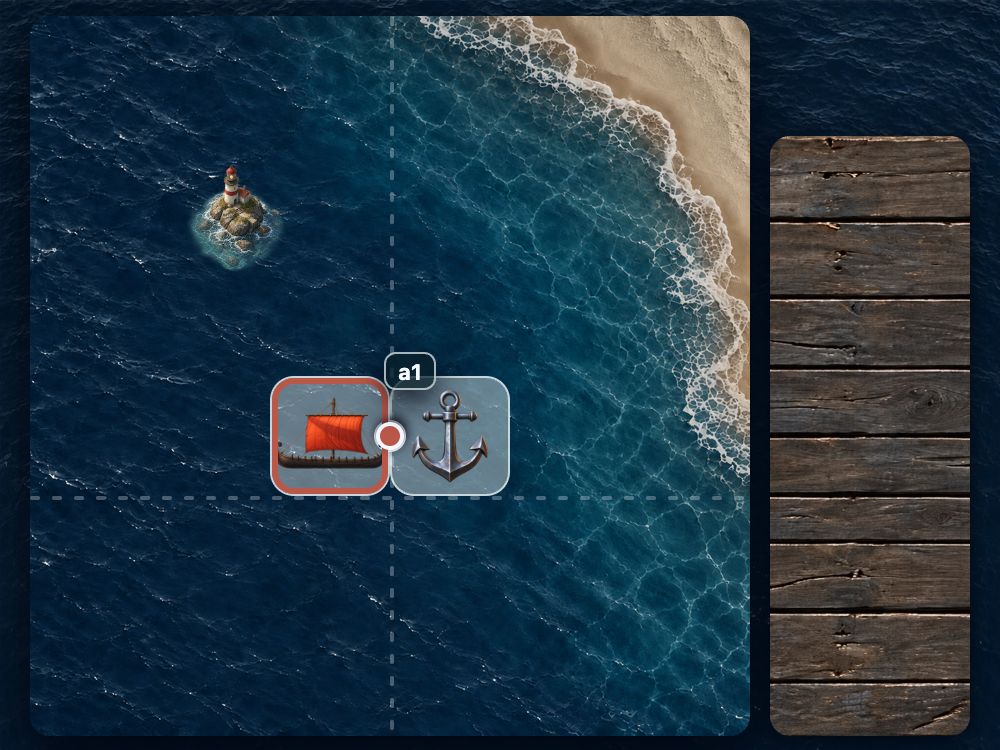
Next, change the arguments. For right, try center and right; for bottom, try center and top. The element moves until its right or bottom edge matches the chosen anchor coordinate. Again, the other attachment stays in place.
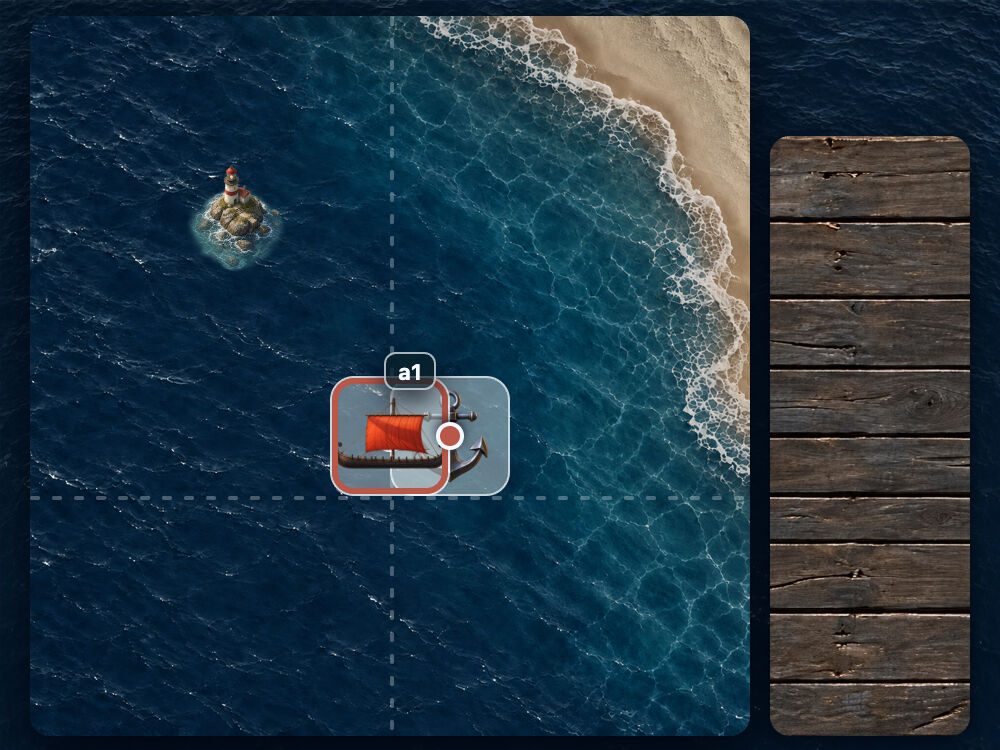
right: anchor(center);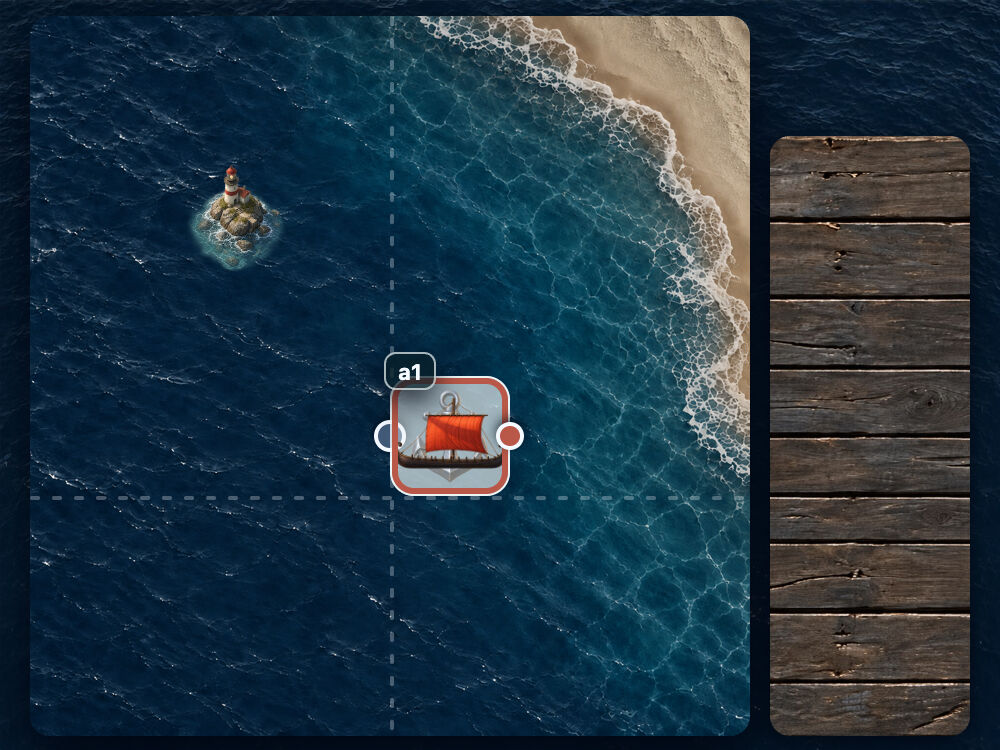
right: anchor(right);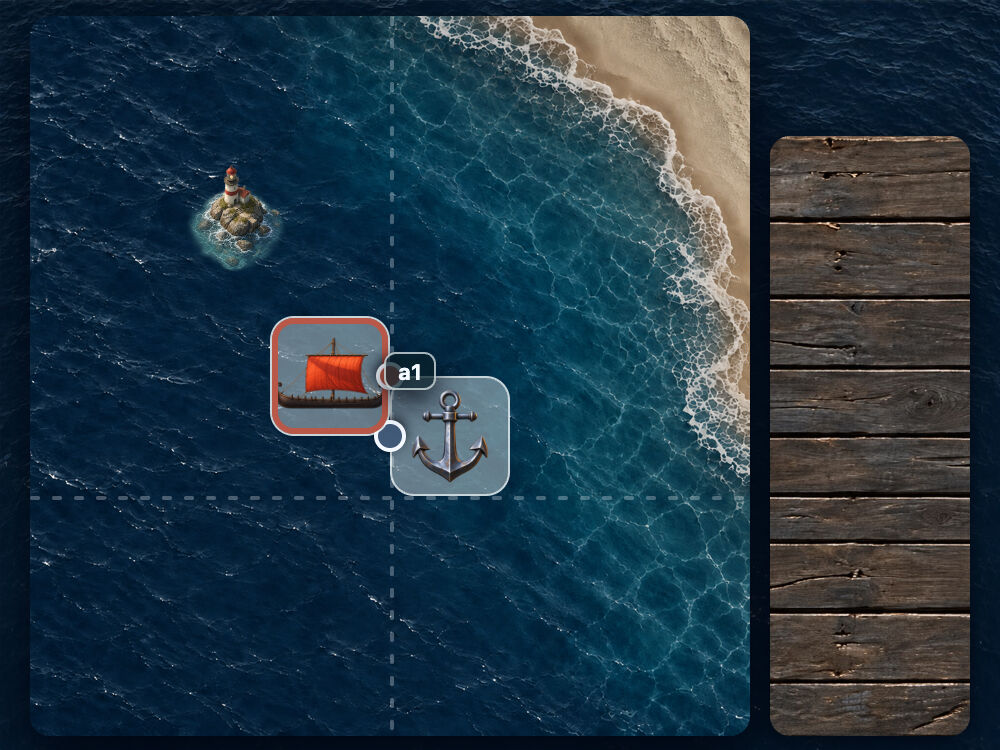
bottom: anchor(center);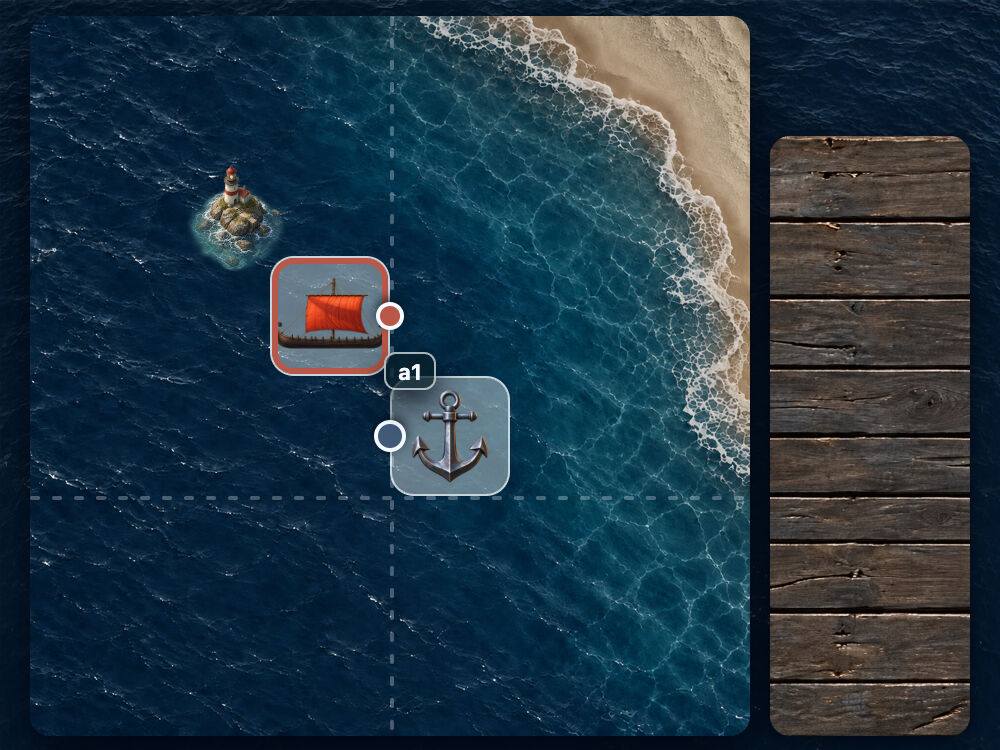
bottom: anchor(top);anchor(): choosing the anchor explicitly
We can put the anchor's name directly inside anchor(). Let's return to a scene with three anchors. Initially, position-anchor is commented out, the edges aren't attached, and .target is in its own container.
.anchor--one { anchor-name: --a1; }
.anchor--two { anchor-name: --a2; }
.anchor--three { anchor-name: --a3; }

.target {
  position: absolute;
  /* position-anchor: --a1; */
  left: auto;
  top: auto;
}
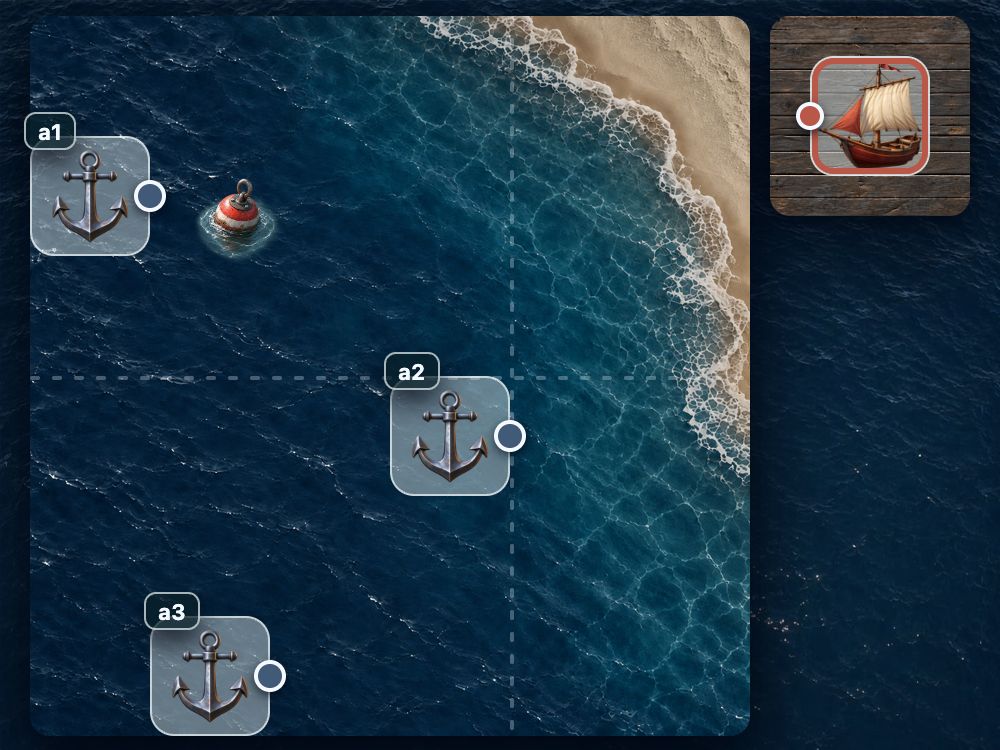
To attach the element to --a1, put that name in both functions. left: anchor(--a1 right) connects its left edge to the anchor's right edge, and top: anchor(--a1 top) aligns the top edges.
.anchor--one { anchor-name: --a1; }
.anchor--two { anchor-name: --a2; }
.anchor--three { anchor-name: --a3; }

.target {
  position: absolute;
  /* position-anchor: --a1; */
  left: anchor(--a1 right);
  top: anchor(--a1 top);
}
The element moves to the right of --a1, aligned at the top. The attachment works with position-anchor still commented out: each function names its own anchor.
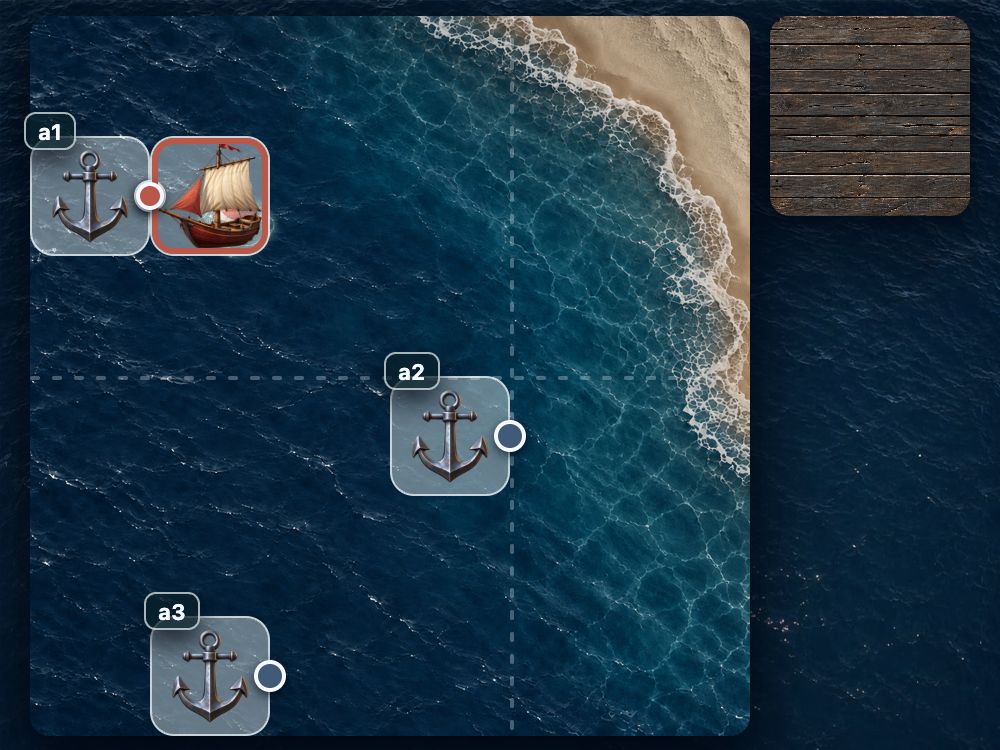
Now replace the name in both functions with --a2, then --a3. The element follows the selected anchor and keeps the same right-hand placement and top alignment.
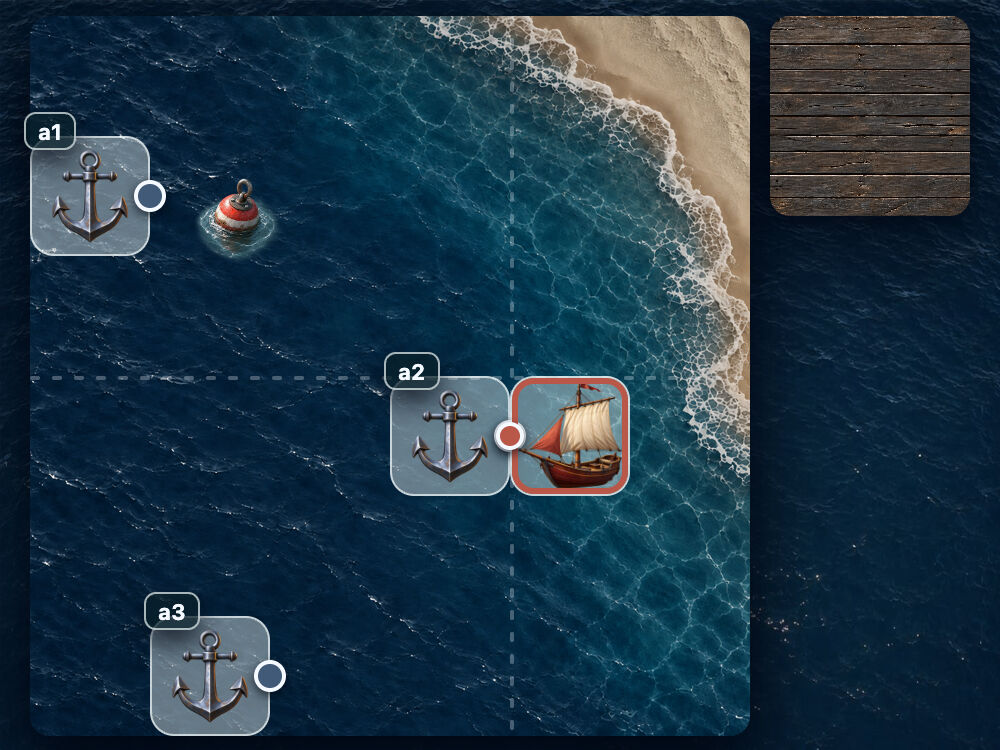
left: anchor(--a2 right); and top: anchor(--a2 top);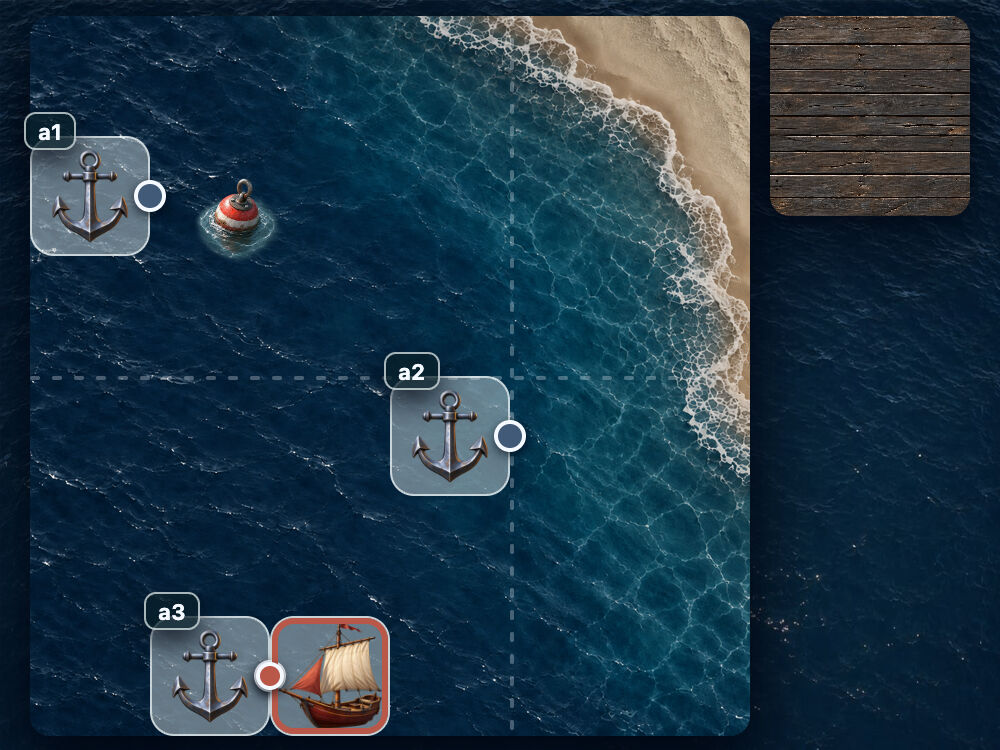
left: anchor(--a3 right); and top: anchor(--a3 top);Several elements, one anchor
One anchor can position several elements. Here, the anchor already has the name --a1, while .target--one and .target--two are waiting in a separate container, unattached.
.anchor--one {
  anchor-name: --a1;
}

.target--one,
.target--two {
  position: absolute;
}
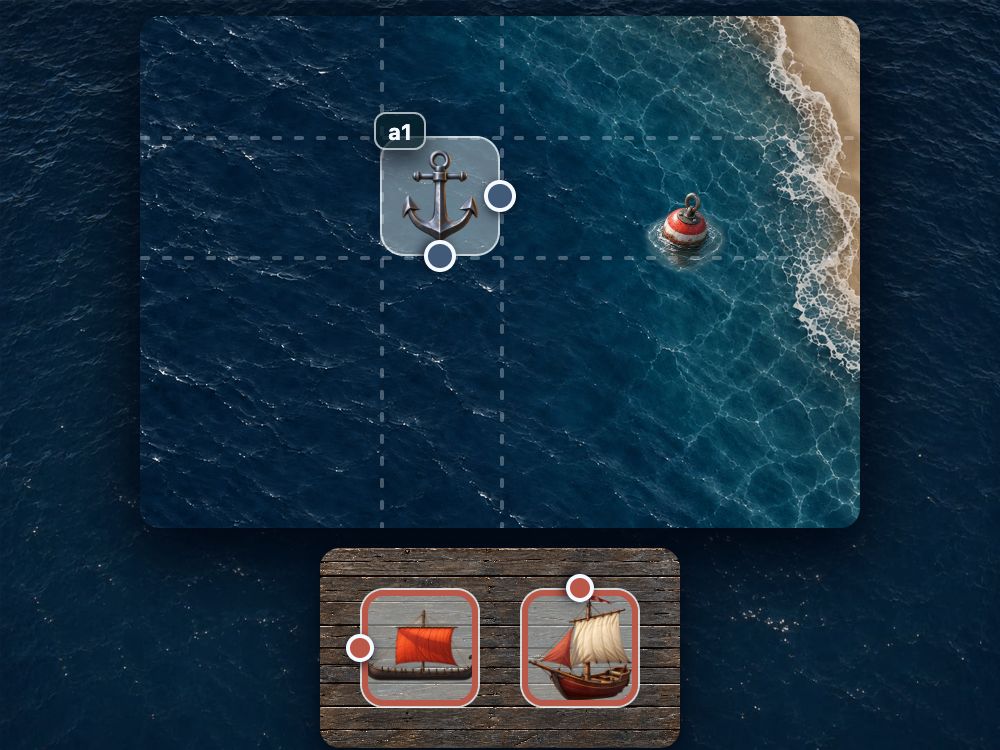
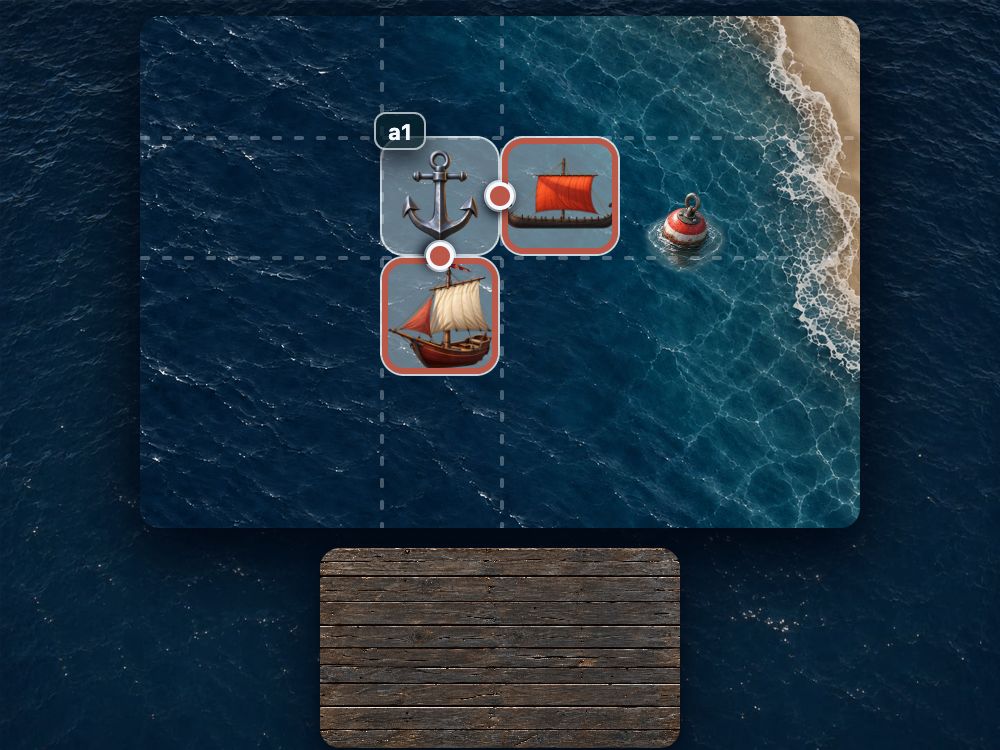
Use --a1 in both elements' anchor() functions, but choose different sides. For the first element, set left: anchor(--a1 right) and top: anchor(--a1 top). For the second, set left: anchor(--a1 left) and top: anchor(--a1 bottom).
.anchor--one {
  anchor-name: --a1;
}

.target--one {
  position: absolute;
  left: anchor(--a1 right);
  top: anchor(--a1 top);
}

.target--two {
  position: absolute;
  left: anchor(--a1 left);
  top: anchor(--a1 bottom);
}
The first element sits to the right, aligned at the top. The second sits below, aligned on the left. The dotted lines show which anchor edges each element is attached to.
Different anchors for different edges
An element's edges can refer to different anchors. We just use different names in anchor(). Here's our starting point: two anchors, --a1 and --a2, and an element with marked corners, still sitting in its own container.
.anchor--one { anchor-name: --a1; }
.anchor--two { anchor-name: --a2; }

.target {
  position: absolute;
  right: auto;
  bottom: auto;
}
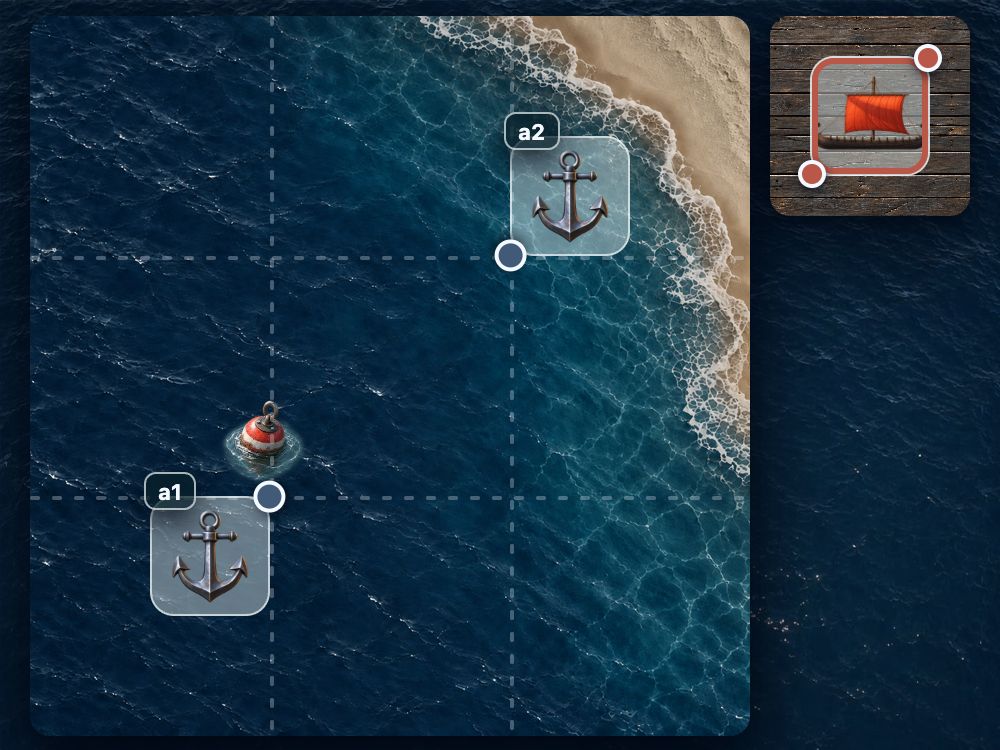
Attach the element's right edge to the left edge of --a2 with right: anchor(--a2 left). Then attach its bottom edge to the top edge of --a1 with bottom: anchor(--a1 top).
.anchor--one { anchor-name: --a1; }
.anchor--two { anchor-name: --a2; }

.target {
  position: absolute;
  right: anchor(--a2 left);
  bottom: anchor(--a1 top);
}
The element moves. Its right edge follows the vertical guide from --a2, while its bottom edge follows the horizontal guide from --a1.
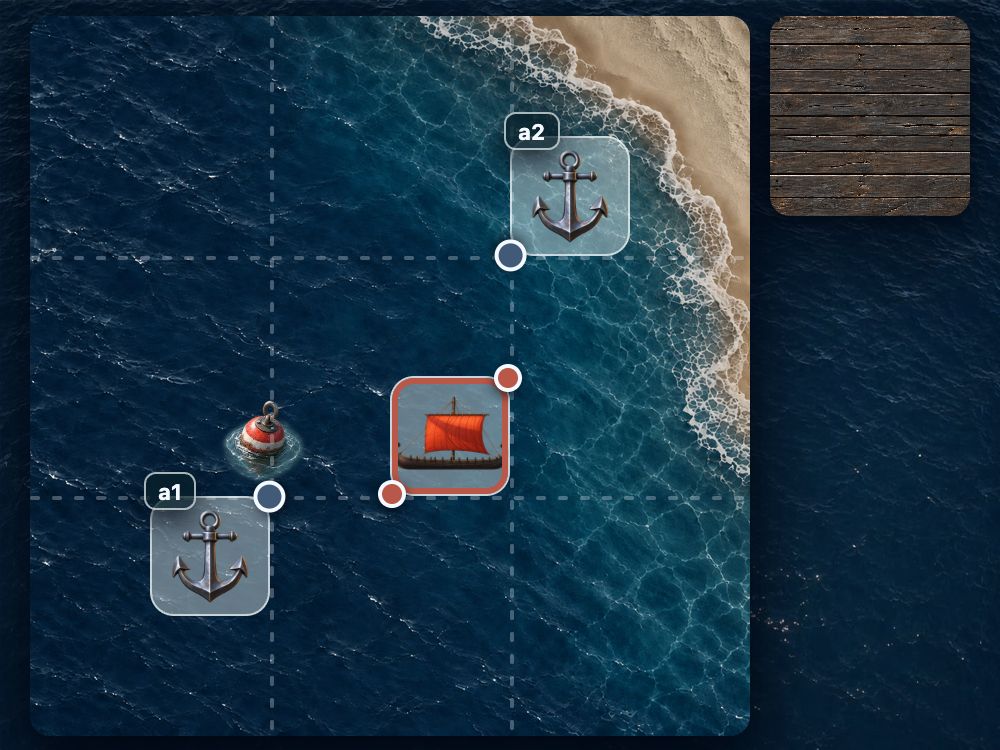
Its position now depends on two anchors: --a2 controls the horizontal coordinate, and --a1 controls the vertical one.
Hang on. This is getting interesting…
We've just attached different edges of one element to different anchors. What happens if we take it a step further and attach two opposite corners? One corner to the first anchor, the other to the second. The element would stretch between them…
That's a connector between elements!
A connector that reaches from one element to another and adjusts as they move. Lines between diagram nodes, arrows between cards, connections across a flowchart. All in CSS, with no JavaScript calculating coordinates.
3. Power Technique: Connectors That Stay Connected
Let's start with two anchors, --a1 and --a2, and a separate .route--one block that we'll turn into a connector. Its edges aren't attached yet. We can see the little rectangle because the scene already gives it minimum dimensions. We'll leave its width and height automatic so it can stretch between the anchors.
.anchor--one { anchor-name: --a1; }
.anchor--two { anchor-name: --a2; }

.route--one {
  position: absolute;
  left: auto;
  right: auto;
  top: auto;
  bottom: auto;
}
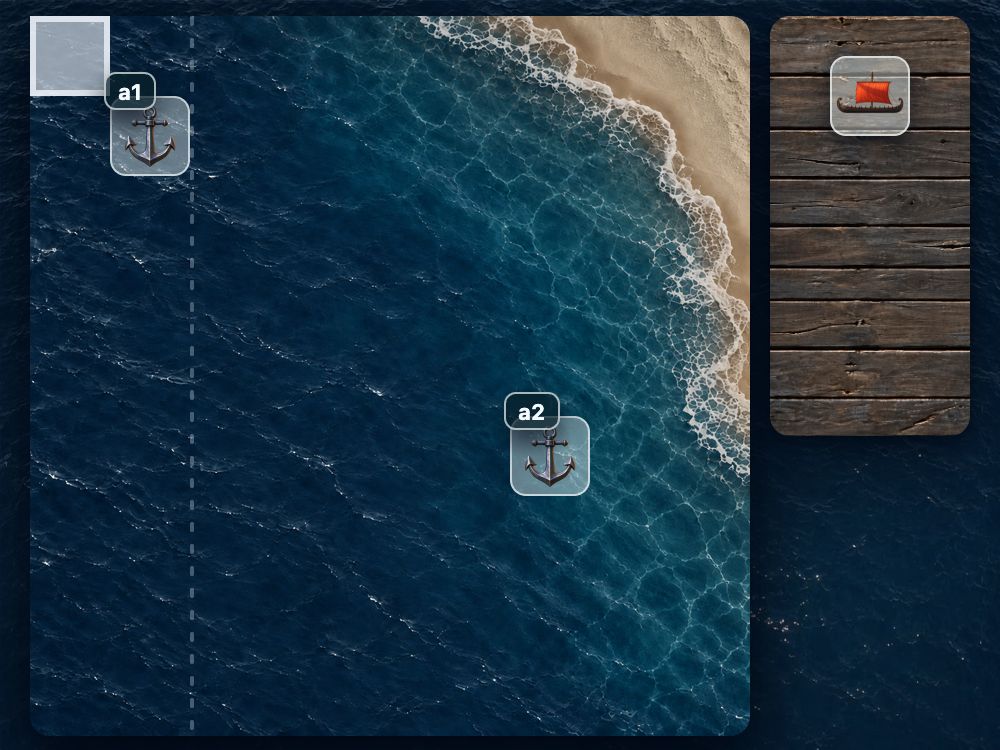
First, stretch the block horizontally: attach its left edge to the right edge of --a1, and its right edge to the left edge of --a2.
.anchor--one { anchor-name: --a1; }
.anchor--two { anchor-name: --a2; }

.route--one {
  position: absolute;
  left: anchor(--a1 right);
  right: anchor(--a2 left);
  top: auto;
  bottom: auto;
}
The block stretches between the two vertical dotted lines, which extend the selected anchor edges. Its height and vertical position haven't changed yet.
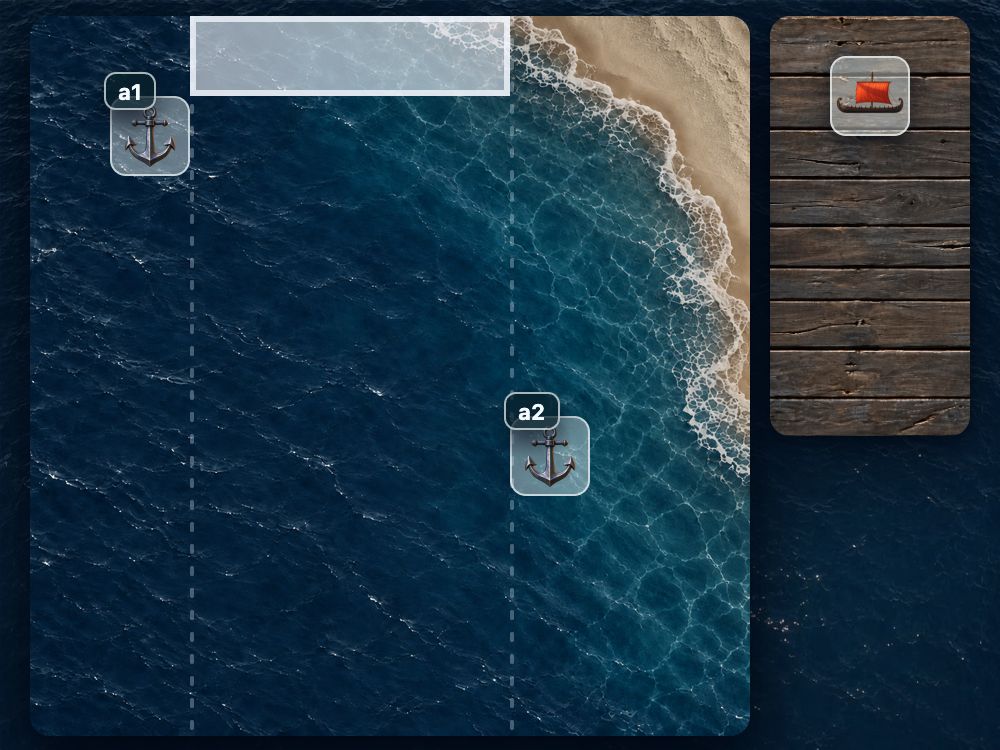
Now set the vertical attachments. Align the block's top edge with the vertical midpoint of --a1, and its bottom edge with the vertical midpoint of --a2.
.anchor--one { anchor-name: --a1; }
.anchor--two { anchor-name: --a2; }

.route--one {
  position: absolute;
  left: anchor(--a1 right);
  right: anchor(--a2 left);
  top: anchor(--a1 center);
  bottom: anchor(--a2 center);
}
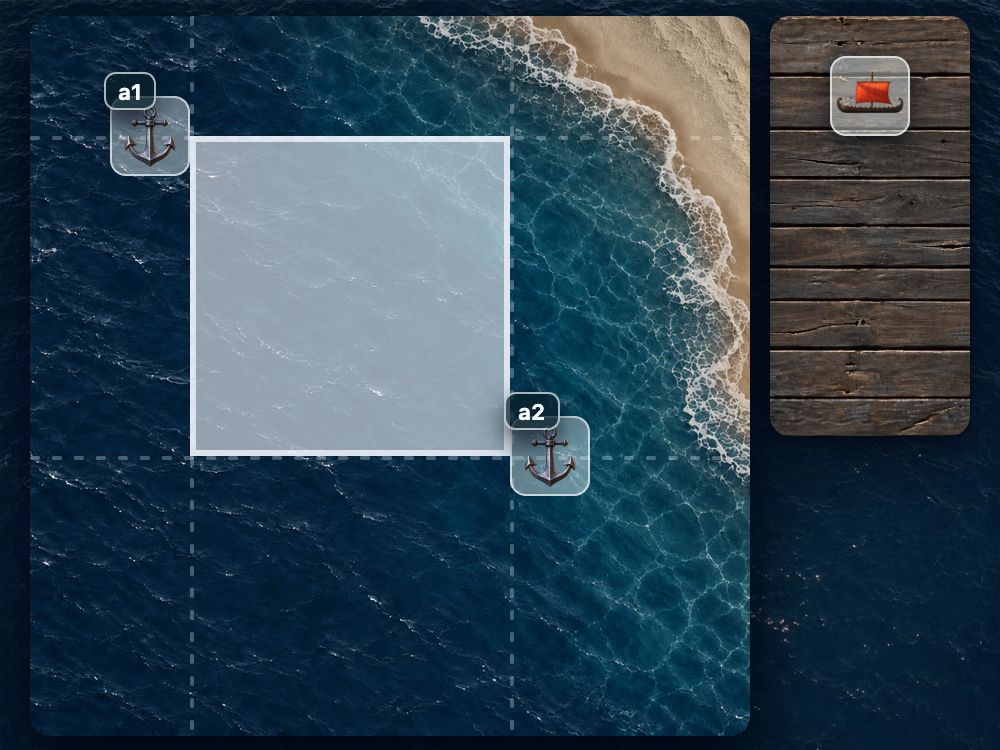
The block stretches vertically too. Its top-left corner is now at the midpoint of the first anchor's right edge, and its bottom-right corner is at the midpoint of the second anchor's left edge. Exactly what we wanted: opposite corners attached to different anchors.
The stretching itself is ordinary absolute positioning. With automatic width and height, the block fills the space between its specified edges.
Drawing the connection
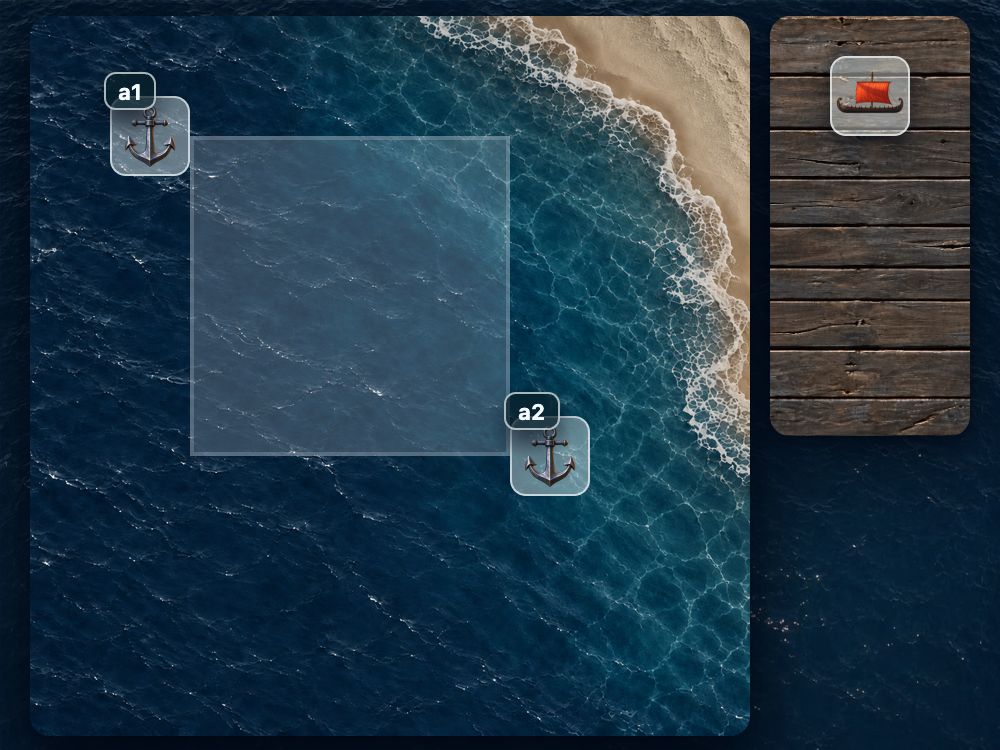
We've got a rectangle between the anchors. Now let's draw a line inside it using a background image. The scene provides a separate .route--bg class for the appearance; without a background image, we only see the pale backing.
.anchor--one { anchor-name: --a1; }
.anchor--two { anchor-name: --a2; }

.route--one {
  position: absolute;
  left: anchor(--a1 right);
  right: anchor(--a2 left);
  top: anchor(--a1 center);
  bottom: anchor(--a2 center);
}

.route--bg {
  background-image: none;
  background-repeat: no-repeat;
  background-position: center;
}
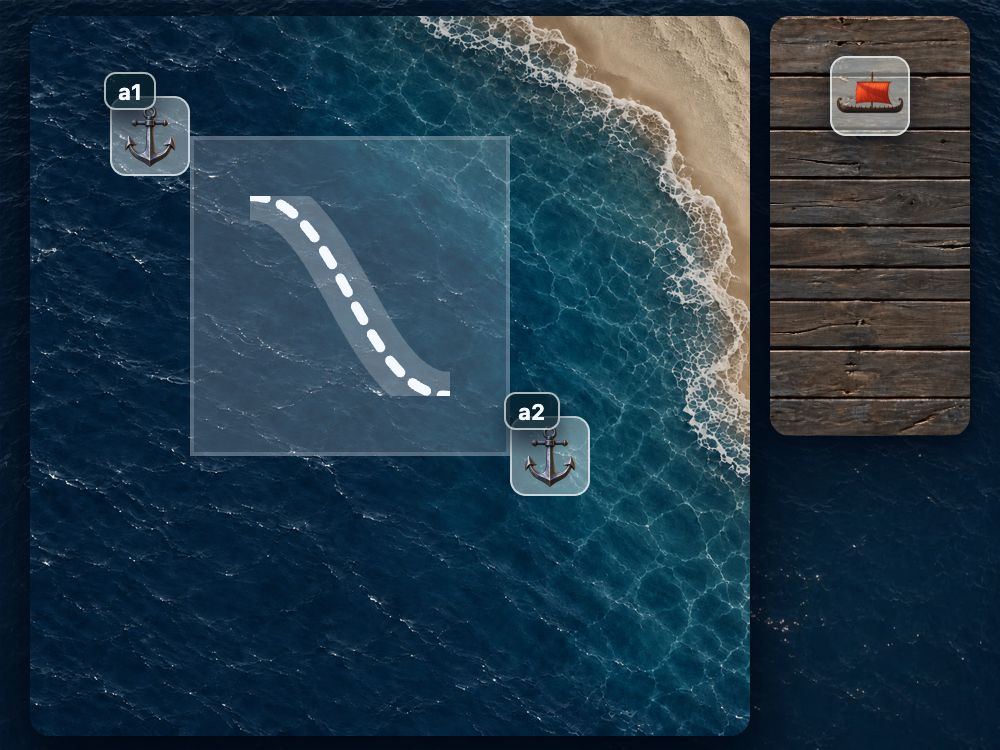
Add a 100×100 SVG with a line running from its top-left corner to its bottom-right corner.
.anchor--one { anchor-name: --a1; }
.anchor--two { anchor-name: --a2; }

.route--one {
  position: absolute;
  left: anchor(--a1 right);
  right: anchor(--a2 left);
  top: anchor(--a1 center);
  bottom: anchor(--a2 center);
}

.route--bg {
  background-image: url("images/route.svg");
  background-repeat: no-repeat;
  background-position: center;
}
The line appears in the center of the block, but doesn't reach the anchors yet. The image has kept its own 100×100 dimensions.
Stretch the background across the whole block with background-size: 100% 100%.
.anchor--one { anchor-name: --a1; }
.anchor--two { anchor-name: --a2; }

.route--one {
  position: absolute;
  left: anchor(--a1 right);
  right: anchor(--a2 left);
  top: anchor(--a1 center);
  bottom: anchor(--a2 center);
}

.route--bg {
  background-image: url("images/route.svg");
  background-repeat: no-repeat;
  background-position: center;
  background-size: 100% 100%;
}
Now the line connects the anchors. Its endpoints match the block's attached corners.
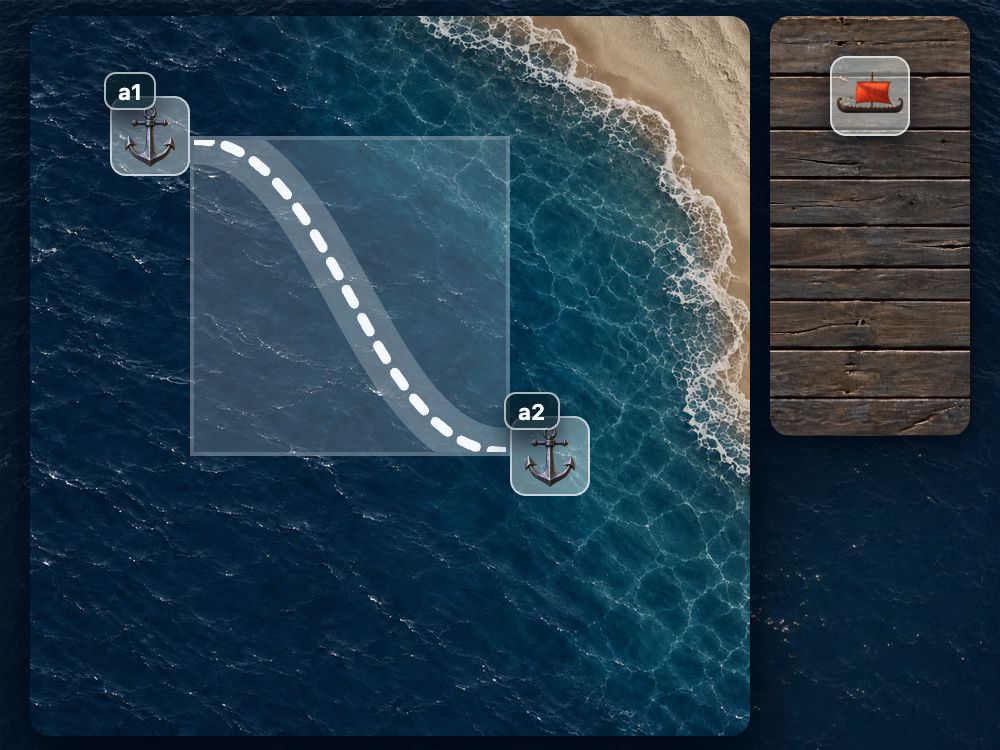
This is ordinary background-size at work. The SVG itself uses preserveAspectRatio="none", allowing the line to stretch with the block along both axes.
Move an anchor and the block changes position and size. The background line stretches along with it. Let's try a couple of arrangements:
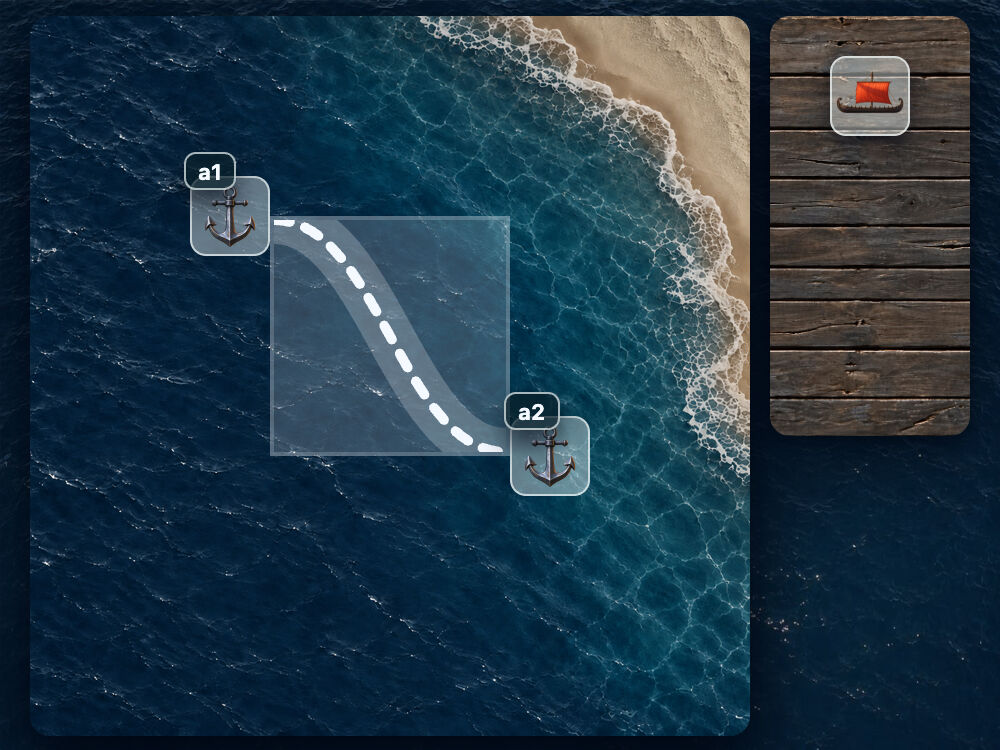
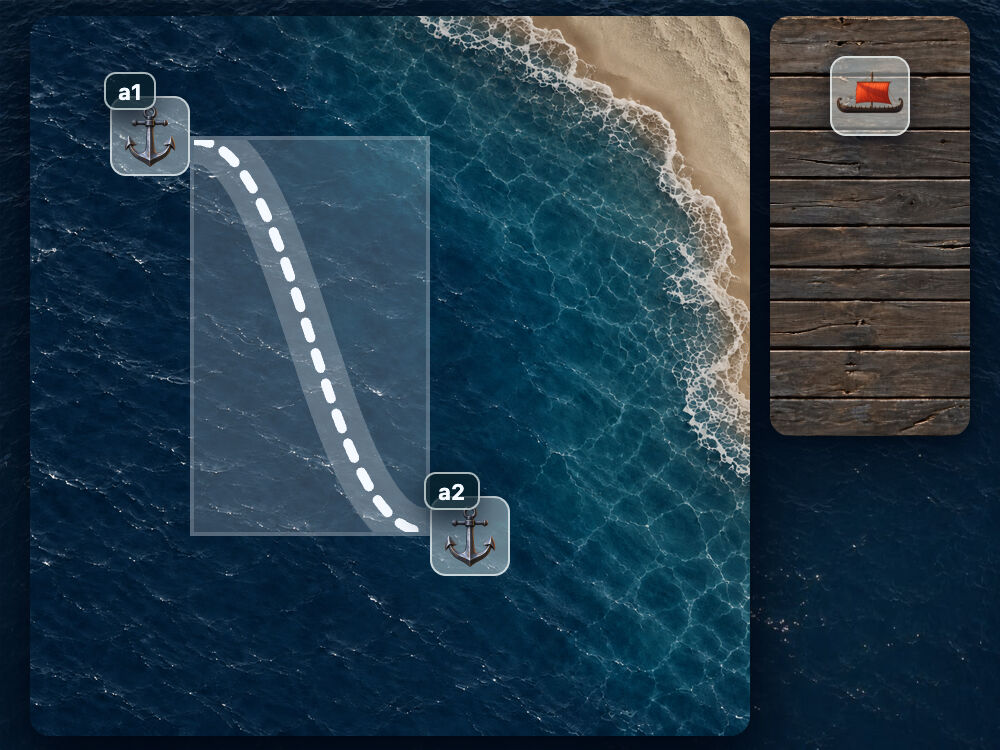
The line stays attached in both cases. The browser recalculates the block's bounds, and the background fills the result.
4. Power Technique: Chains of Anchors
Our route is already attached to two anchors. What if we attach a ship to the route itself and place it in the middle? We'd have a chain: anchors → route → ship. Let's build it, then move the original anchors and see whether the ship follows.
Here's the starting point. The route connects the two anchors, while the ship is still in its own container. The route doesn't yet have a name for the ship to reference.
.anchor--one { anchor-name: --a1; }
.anchor--two { anchor-name: --a2; }

.route--one {
  anchor-name: none;
}

.ship {
  position: absolute;
  position-anchor: none;
  position-area: none;
}
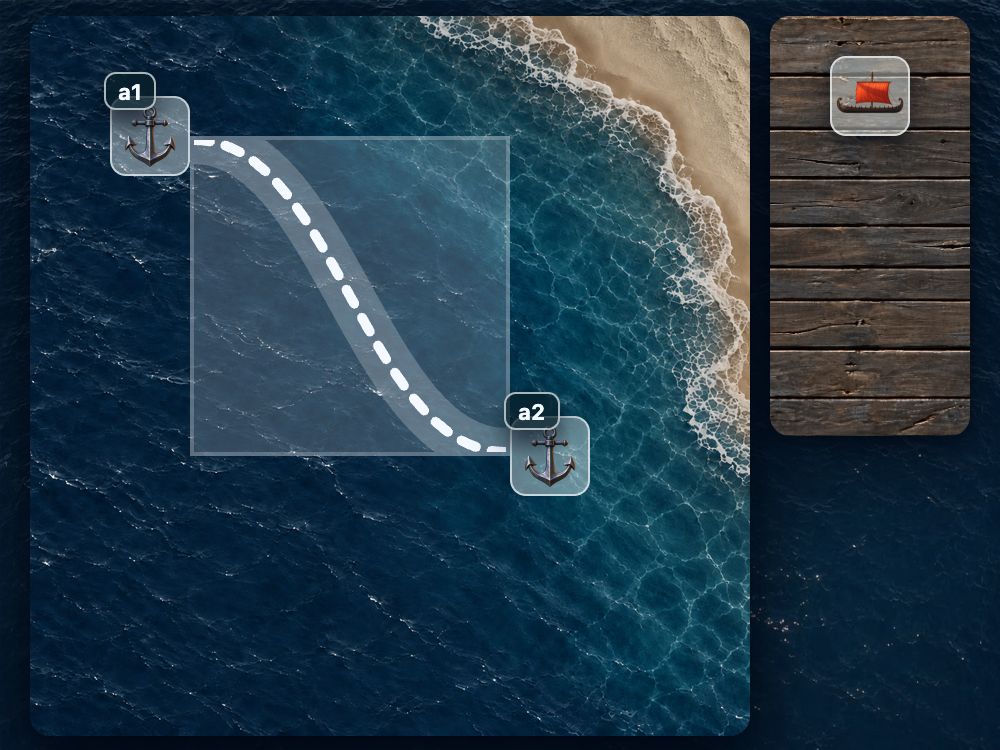
We know two ways to attach things: position-area and anchor(). Here, we want the ship in the center of the route's block, so position-area is a good fit. We only need to select the central area.
Back to our three properties. Give the route a name with anchor-name: --r1. On the ship, use position-anchor: --r1 to select that route and position-area: center to place it in the middle.
.anchor--one { anchor-name: --a1; }
.anchor--two { anchor-name: --a2; }

.route--one {
  anchor-name: --r1;
}

.ship {
  position: absolute;
  position-anchor: --r1;
  position-area: center;
}
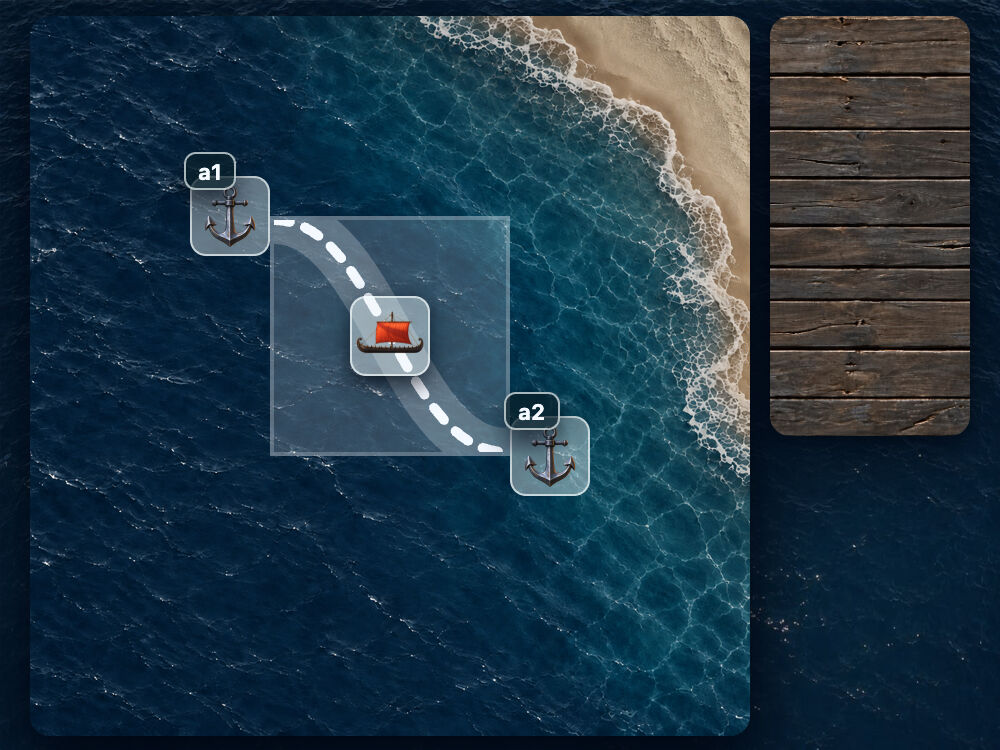
The ship moves to the center of the route. The chain works: the route is attached to the two anchors, and the ship is attached to the route.
The pale backing shows the block we're centering the ship within. In this drawing, the line passes through the center of that block, so the ship lands right on it.
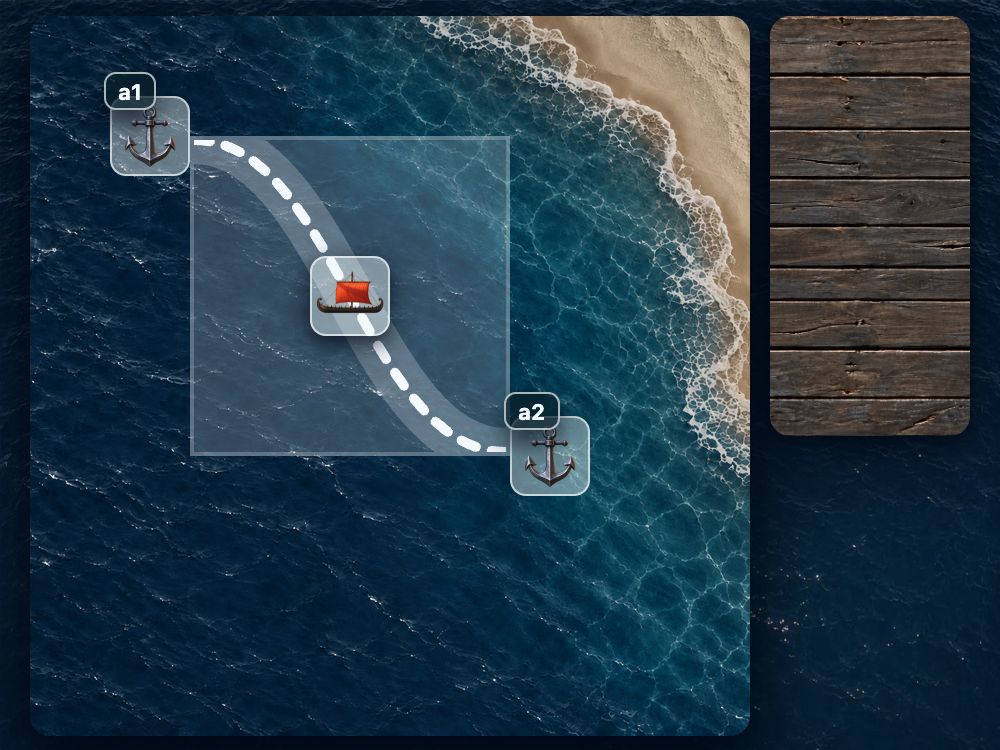
Let's move the original anchors. The route changes position and size, while the ship stays in its center.
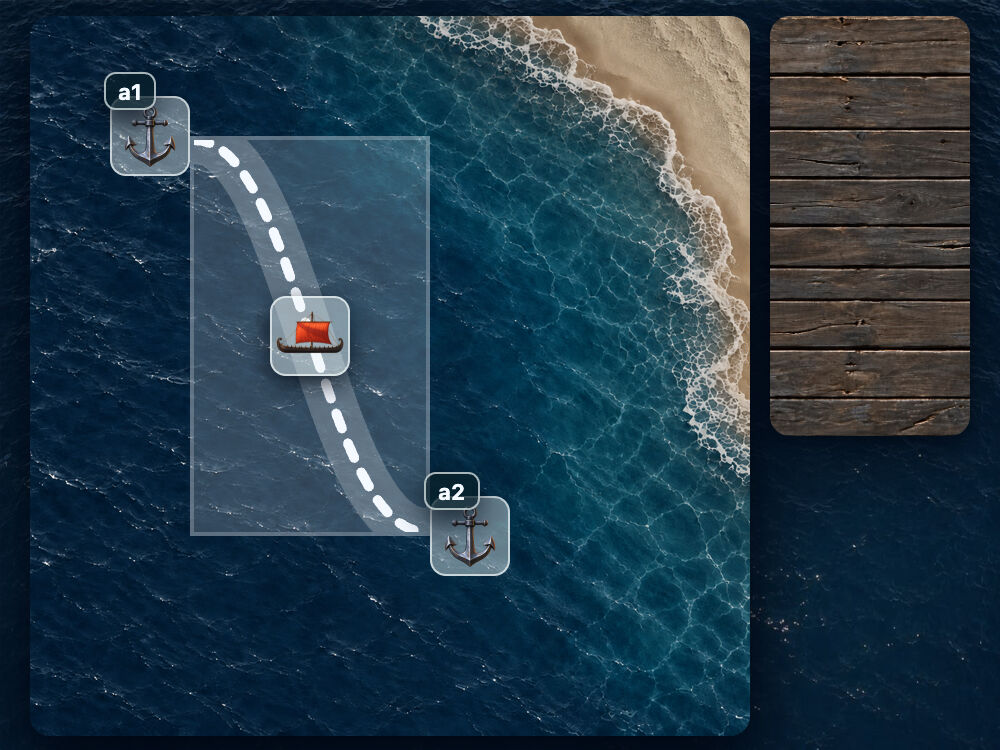
A detail that matters. Each anchor must be laid out before the element that refers to it. We can't close the chain into a loop by attaching elements to each other.
In our example, both the route and the ship are absolutely positioned relative to the common containing block,
.stage, even though they have different parents. For this pair, their HTML order matters: the route must come before the ship. This follows from the specification's acceptable anchor conditions.
Adding a second route
Let's add one more anchor and one more route. Put both new elements at the end of .work-field. That keeps both routes before the ship in the markup:
<div class="work-field">
  <!-- The first two anchors and the first route -->

  <div class="anchor anchor--three"></div>
  <div class="route route--bg route--two"></div>
</div>
<div class="parts-field">
  <div class="parts-field-cell">
    <div class="ship ship--one"></div>
  </div>
</div>
The new route isn't attached yet, and the ship stays on the first route.
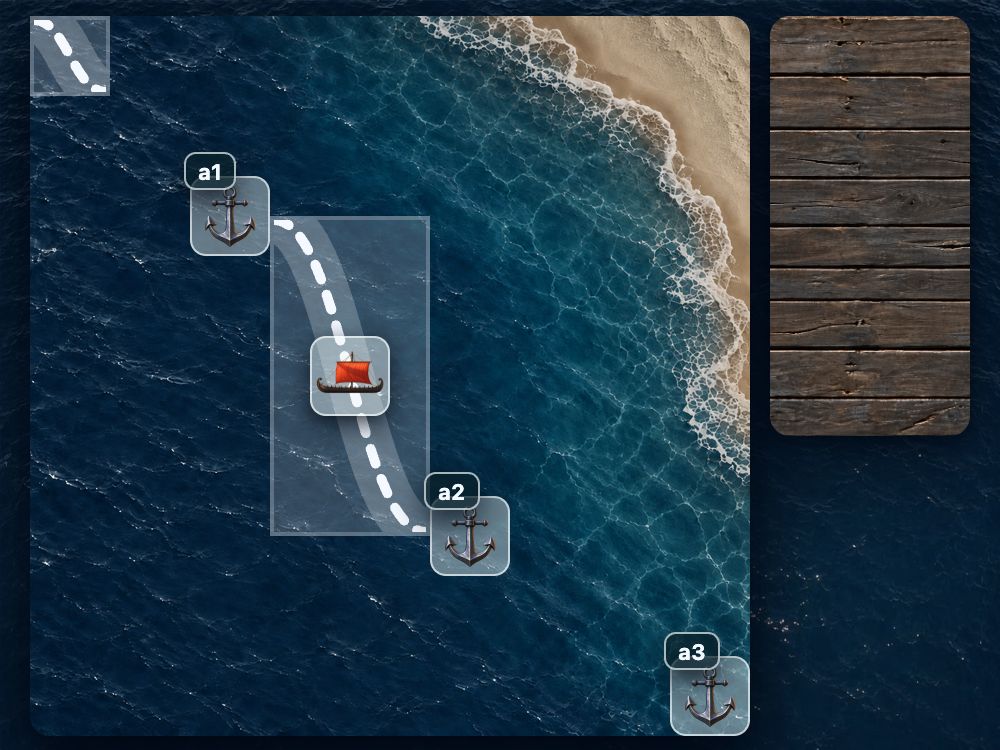
Repeat the familiar steps: name the third anchor --a3 and attach the second route's edges to --a2 and --a3.
.anchor--three { anchor-name: --a3; }

.route--two {
  position: absolute;
  left: anchor(--a2 right);
  right: anchor(--a3 left);
  top: anchor(--a2 center);
  bottom: anchor(--a3 center);
}
The second route now connects the second and third anchors.
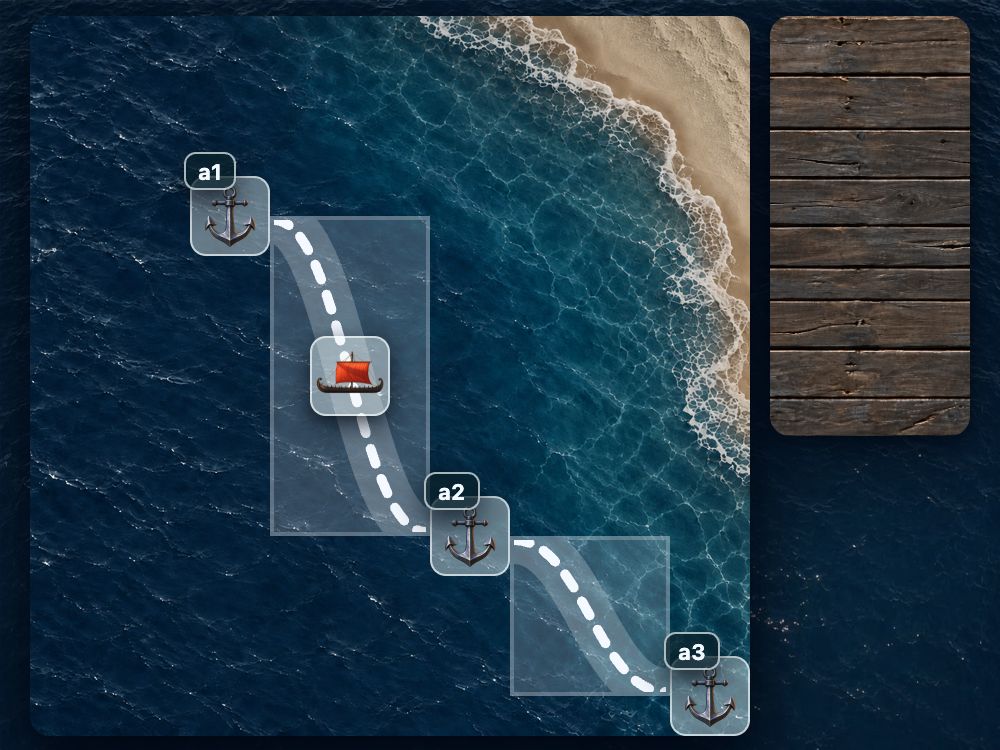
Now move the ship onto it. Give the route the name --r2, then select that name in the ship's position-anchor. The existing position-area: center stays in place.
.route--two {
  anchor-name: --r2;
}

.ship {
  position-anchor: --r2;
}
The ship moves to the middle of the second route.
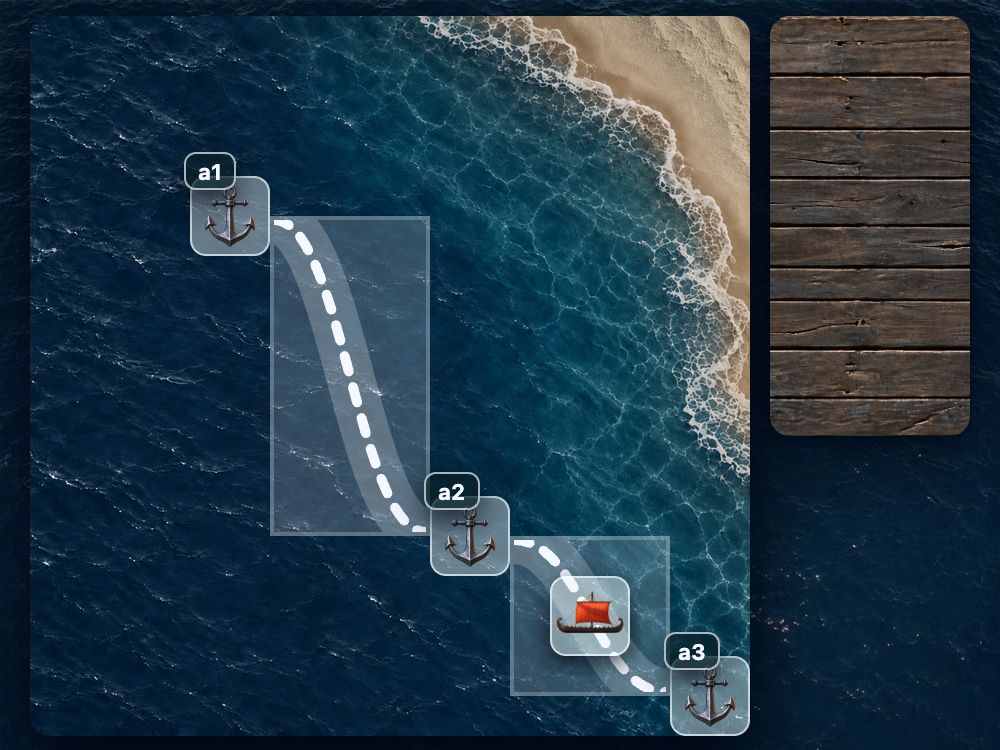
All of this in CSS. And you can use it today.
Now you can see why anchors caused so much excitement. They first shipped in Chrome in May 2024, and became Baseline Newly available in January 2026. If your project's browser requirements cover those versions, you can put this to work in production.
Let's remove the helper backings and enjoy the result.
Move the anchors. Switch the ship between routes. The connections hold: the lines follow their anchors, and the ship stays in the middle of the selected route. Without a single line of JavaScript recalculating coordinates.
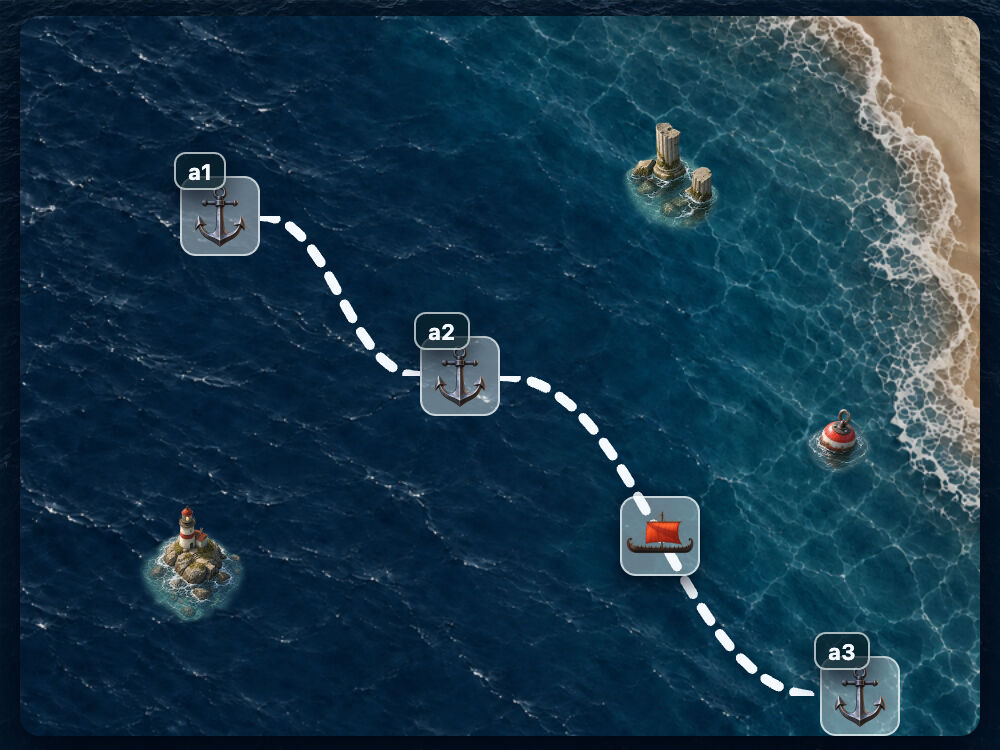
position-anchor: --r2;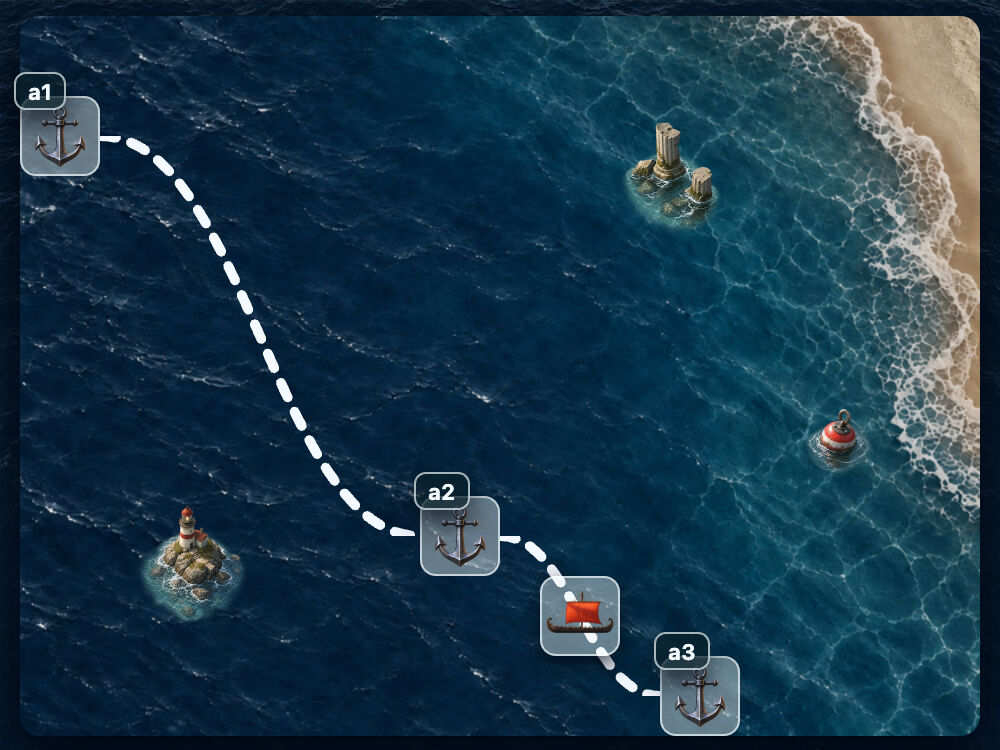
position-anchor: --r2;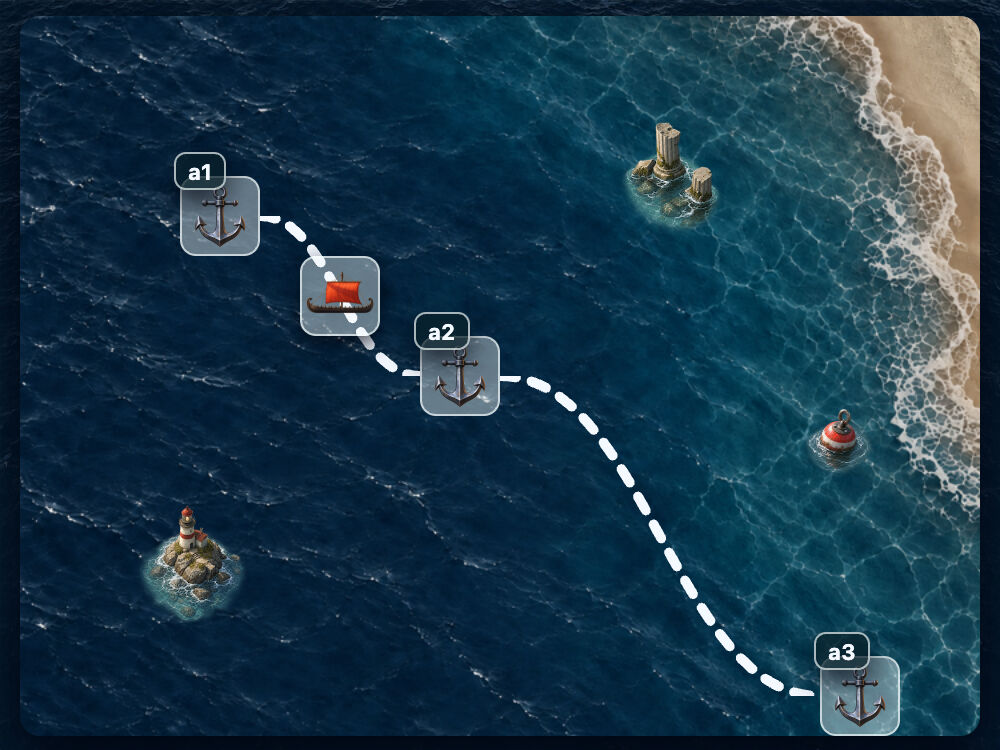
position-anchor: --r1;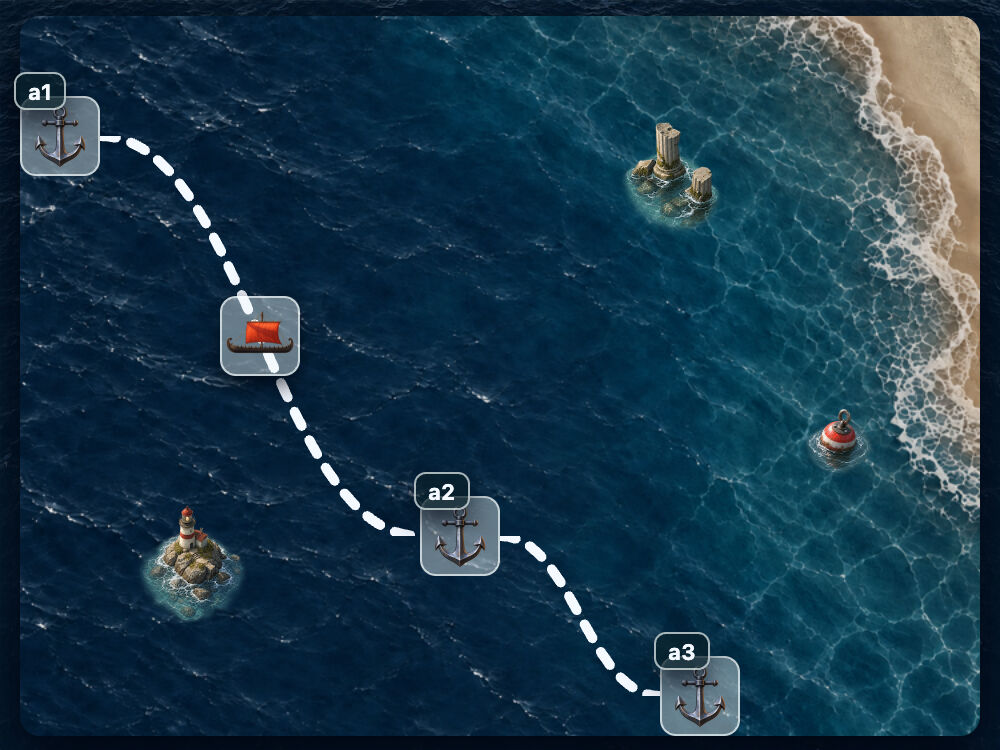
position-anchor: --r1;What would you connect this way? Try the three Anchor Positioning levels, then bring the same idea to your own layouts.
Making the anchors move
The scene at the start needs just one more ingredient: a CSS animation on the anchors. Take an absolutely positioned anchor and animate its left coordinate with a few keyframes:
.anchor--one {
  position: absolute;
  animation: drift 12s ease-in-out infinite alternate;
}

@keyframes drift {
  from { left: 0%; }
  to { left: 12%; }
}
As the anchor moves, anchor() updates the route's bounds. The ship follows the route's center through position-anchor and position-area. Give the other anchors their own timings, animate top as well, and the whole scene comes to life.